Building under windows
This implementation is likely dying as Microsoft has changed the names of their math libraries making it exceptionally difficult for CSIRO to continue to support a windows version. If you are are on Windows 10 (or earlier) and can access Visual Studio 13 you are likely ok to run it natively on windows. Otherwise please use Docker (there is a dedicated page on this and examples in the videos of course lectures) or a remote machine which can run Mac of Linux versions.
Compiler Options
We currently support the following compilers:
Visual Studio C++ 2003/2005
Visual Studio C++ 2008 Express Edition.
Visual Studio C++ 2010 Express Edition.
Visual Studio 2012 Express Edition - Download the ‘Visual Studio 2012 Express for Windows Desktop’ version.
Visual Studio 2005/2008/2010/2012 Users - you must have the NetCDF 4 installed before Atlantis will run.
The newer versions of these can be downloaded from the Microsoft website. You will need to register within 30 days. Registration is free, they just want your email address but they don’t seem to send any serious spam to that email address.
If you are keen to use another version of Visual Studio or a different compiler then contact Bec or Beth for help. Do not assume that it will work with newer versions of Visual Studio.
Attached to this page is a zip that contains two Visual Studio installers.
- vc_web.exe will install VS2010.
- wdexpress_full.exe will install VS2012.
DO NOT TRY TO USE VISUAL STUDIO 2015!!!! Atlantis will not compile using this version of Visual Studio.
Building in Visual Studio
Ensure your source code location does not contain a space. Code will not build if its path includes a space
Building under windows is now as simple as opening the appropriate visual studio solution in the root atlantis SVN repostory folder.
Visual Studio 2003: atlantis.sln
Visual Studio 2005: atlantis_VS2005.sln
Visual Studio 2008: atlantis_VS2008.sln.
Visual Studio 2010: atlantis_VS2010.sln
Visual Studio 2012: atlantis_VS2012.sln
Once you have opened the project using visual studio you will be able to build it by right clicking on the atlantis solution and selecting Rebuild all.
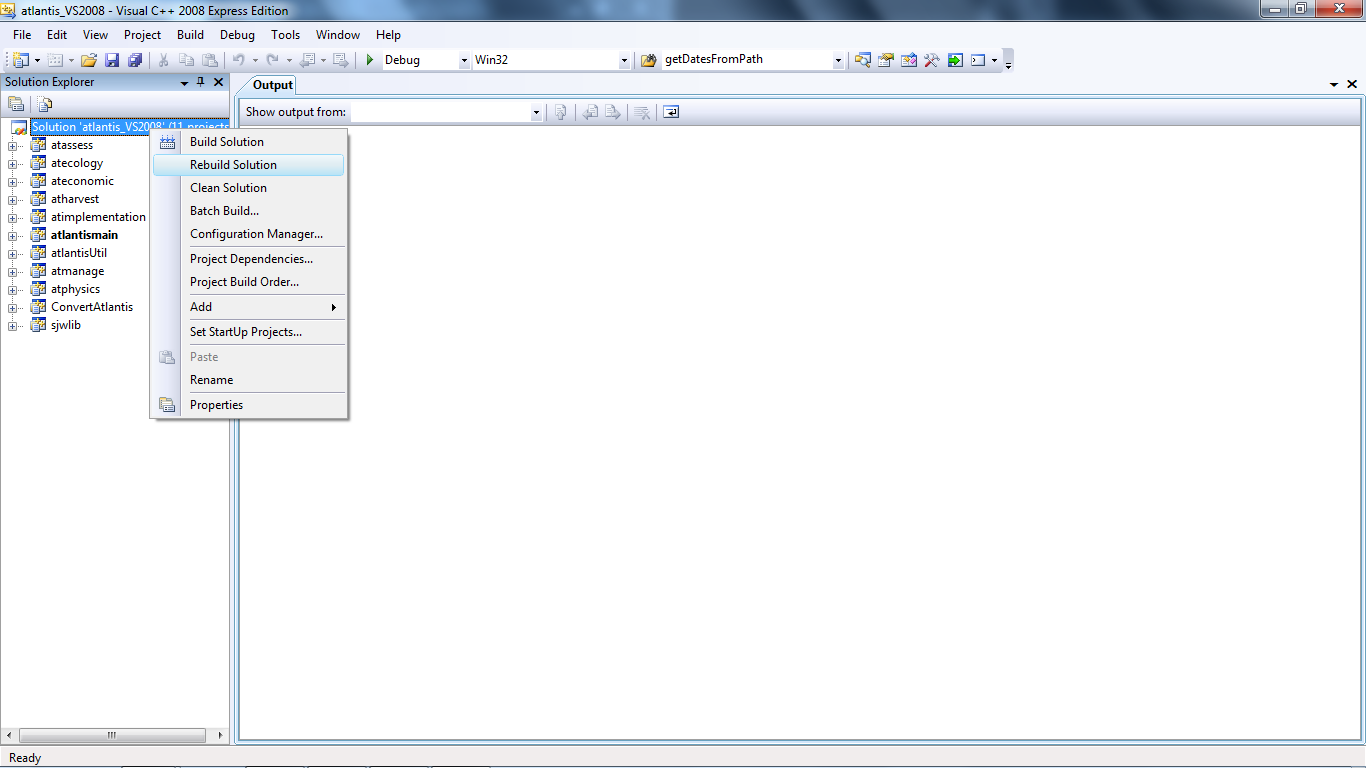
Build outcome
The build process should show all projects succeeding and 0 failing as shown below:
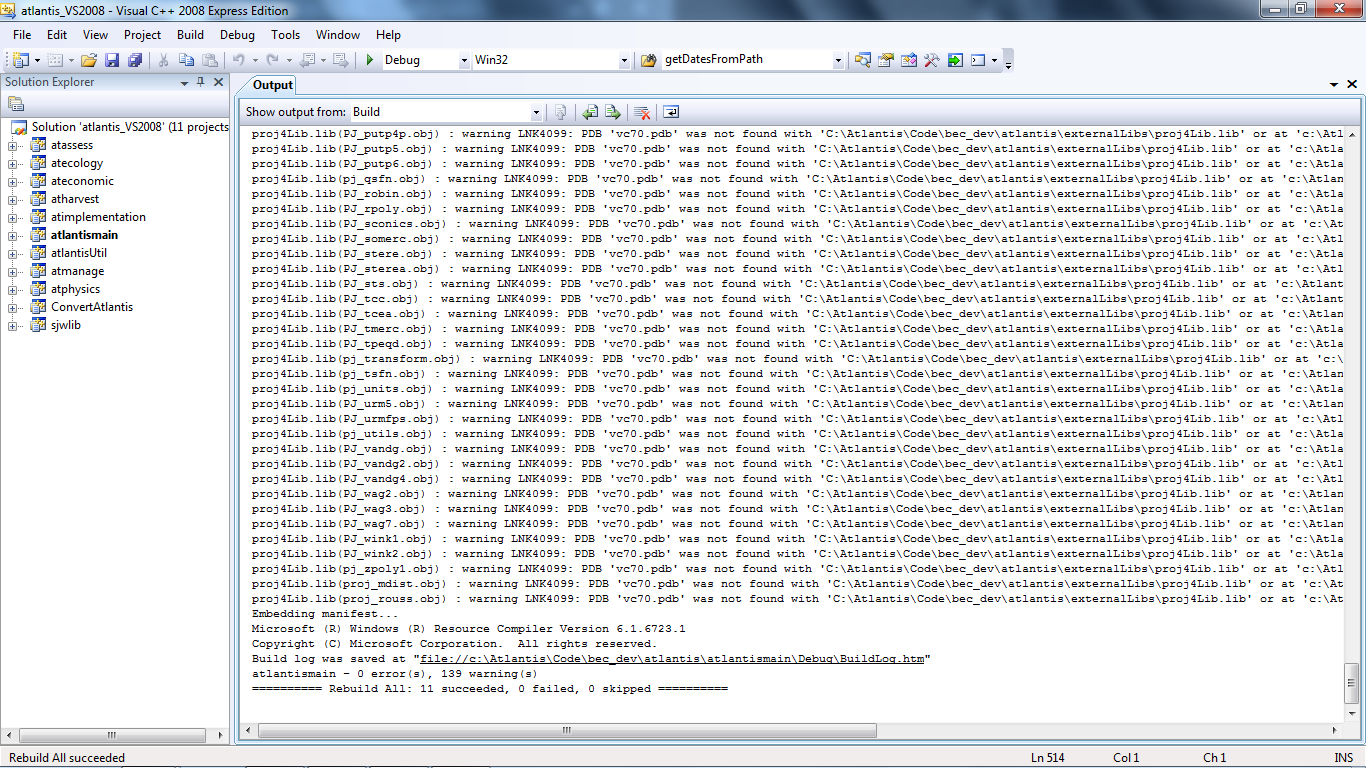
Common Build Errors
There is a list of common errors and how to fix them here
Copy the executable to your run location
The above step will have built you a new atlantismain.exe executable in the atlantismain/Debug folder.
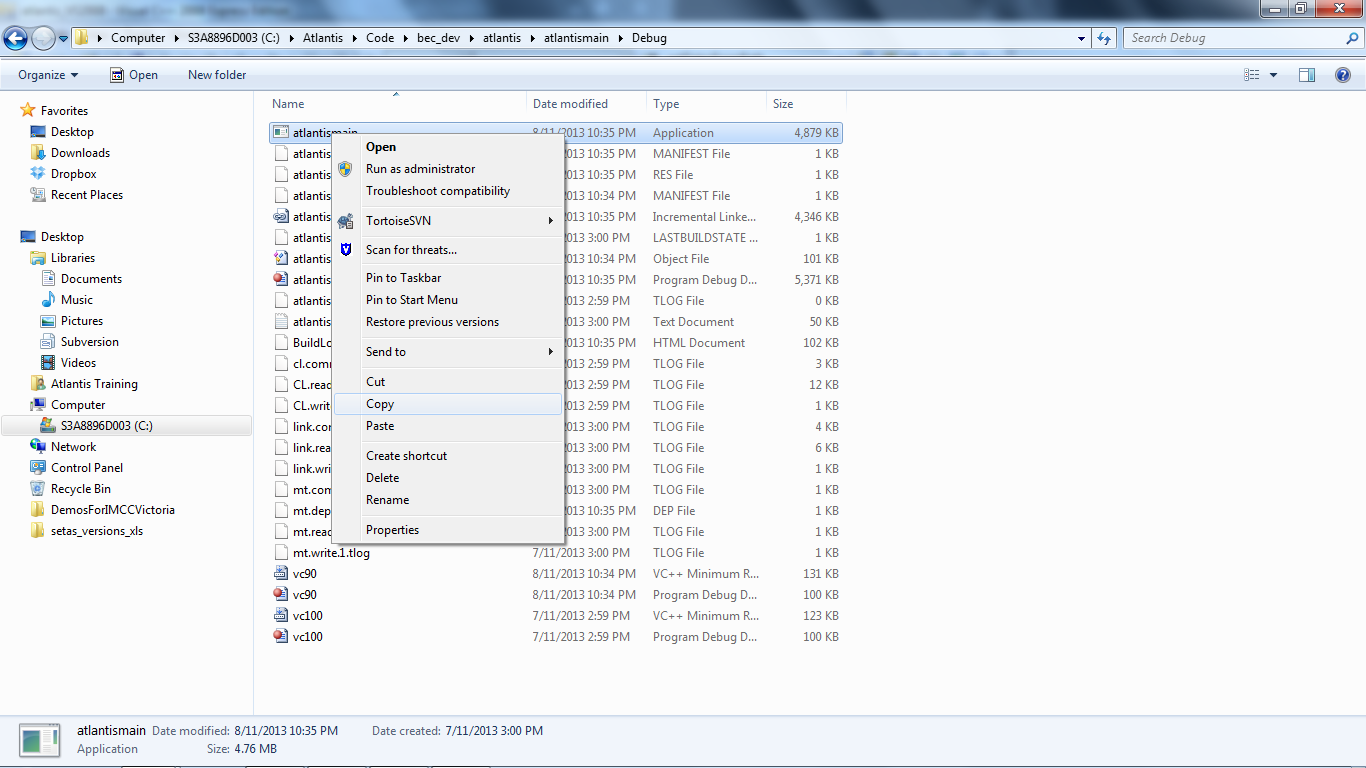
You need to copy the file atlantismain.exe to the folder where you are doing your model runs.
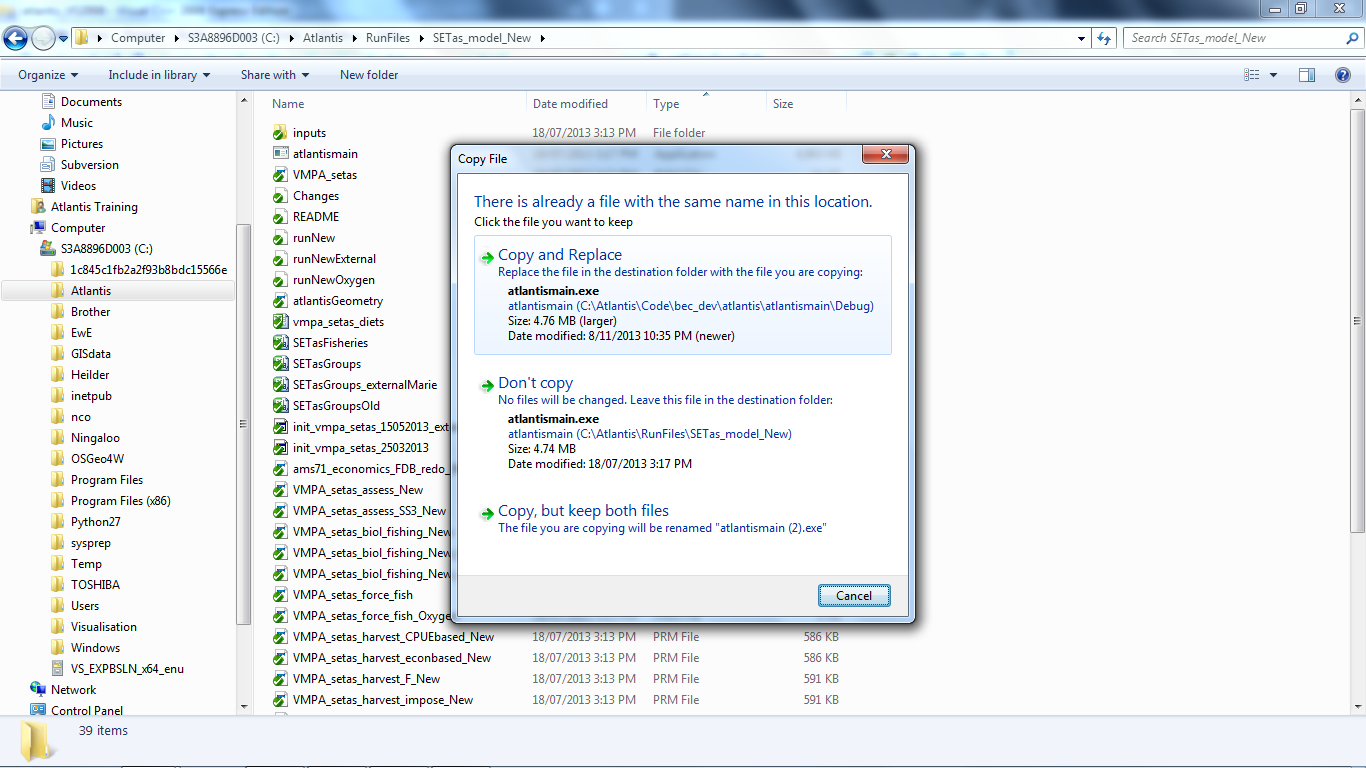
If you forget this step you will keep using the old executable, not the new one you have compiled.
Copy the executable to another machine
If you have multiple Windows machines that are using the same operating system then you can compile the Atlantis executable on one machine and copy it to the other machines. You will need to install the runtime libraries that Atlantis requires or you will get lots of missing dlls type errors. To install the runtime libraries you need to install what is called a Visual Studio C++ Redistributable Package for the version of Visual Studio you used to compile Atlantis. Its important that you install the correct version or it will propbaly not work and you will have to uninstalled it before you can install the correct version.
You should hopefully be able to find what you need at the following site:
http://support.microsoft.com/kb/2019667
Or you can do a google search for ‘Visual Studio C++ Redistributable Package’ and include the version of Visual Studio you are using (2008, 2010 etc) . Make sure you select a download from a trustworthly microsoft looking website.
Running Atlantis in Debug mode in Visual Studio:
These instructions are provided for reference only. We do not recommend running Atlantis from within Visual Studio, it should be run via a windows command prompt. - Make sure that atlantismain is set as the startup project. - Right click on the atlantismain project and select the Properties option in the menu. - Select the Debugging option in the Configuration Properties menu. - Change the Command Arguments to the atlantis arguments that you normally use. - Change the Working Directory to the path to your input files.
See the image below for an example of this configuration.
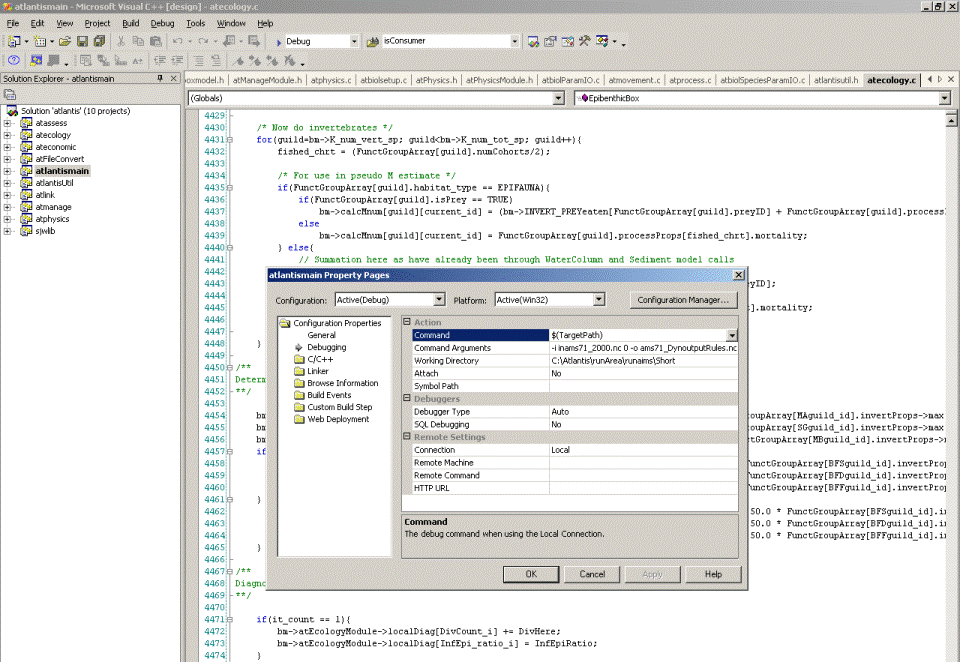
Once this is done you should be a able to run atlantis in visual studio by right clicking on the atlantismain project and selecting debug->Start New Instance.
For more information about how to use the visual studio debugging options see Navigating through Code with the Debugger.
Changes from previous build process
- All of the header and library locations are relative to the atlantis root location so you can move the source folder to another location without having to change anything.
- The regular expression library is now linked statically so you don’t need the following dlls anymore:
- tre4.dll
- rx1.dll
- libintl3.dll
- libiconv2.dll