Start a VNCServer instance on cluster machines
Background info
In computing, Virtual Network Computing (VNC) is a graphical desktop sharing system that uses the RFB protocol to remotely control another computer. It transmits the keyboard and mouse events from one computer to another, relaying the graphical screen updates back in the other direction, over a network.
VNC is platform-independent – a VNC viewer on one operating system may connect to a VNC server on the same or any other operating system. There are clients and servers for many GUI-based operating systems and for Java. Multiple clients may connect to a VNC server at the same time. Popular uses for this technology include remote technical support and accessing files on one’s work computer from one’s home computer, or vice versa.
[Snaffled from wikipedia - [http://en.wikipedia.org/wiki/Virtual_Network_Computing]]
Starting a VNCServer instance on a cluster machine
You should only have to do this if you don’t already have an instance. Once you have an instance running it will only die if you kill it (see below) or the machine is restarted.
Connect to remote server
You will connect as Beth using her ident.
Using Putty
The host name or IP should be the server you want to connect to, eg Mokey.
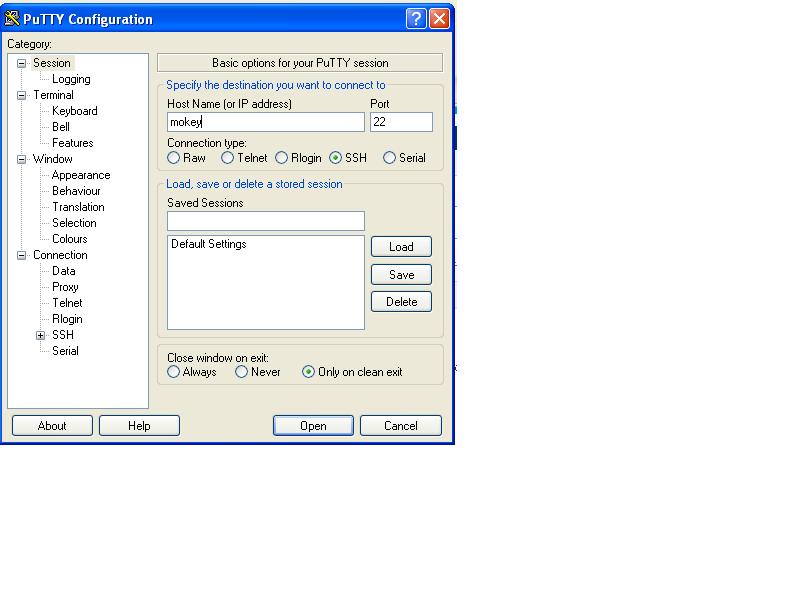
You shouldn’t have to change any of the other settings. Once you have clicked the ‘Open’ button you should get a terminal up with a username prompt. Enter Beths ident here (ful083) then the password.
Using SSH
Type the following into a terminal or command prompt.
ssh ful083@mokey
Or replace mokey with ‘sweetums’ or ‘gobo’
enter the password.
Starting a VNCServer instance
Start the vncserver instance by typing the following:
/opt/TurboVNC/bin/vncserver -geometry 1200x1000
If you get an error message saying that there is no such file or directory try:
/usr/bin/vncserver -geometry 1200x1000
(You might want to change the geometry to get a nice size window)
This will print out a message like:
New ’X” desktop is mokey:5
Note the number it has given you, this is important when you connect to the X desktop. If :5 is already running, taken by another user, or the lock file (/tmp/.X11-unix/X5) exists from an old session you will be allocated an alternative session id, or it will not start. You will need to use this alternative ID from the client VNC session on windows.
You can exit the ssh session by typing ‘logout’.
Killing your instance
If you need to kill the vncserver instance then ssh into the server (see above) and type the following:
/opt/TurboVNC/bin/vncserver -kill :5
If you forget the format of the vncserver command you can always type the following:
/opt/TurboVNC/bin/vncserver –help
Connecting from your computer using VNCViewer
On you personal computer you now want to connect to that new X desptop using vncviewer.
If you are a windows user the start vncviewer and type in the X desktop name ‘mokey:5’.
You will have to enter a password. Bec will give this to you.
If you are using linux then type:
vncviewer mokey:5 in a terminal.