Using QGIS to clean Atlantis BGM Shapefiles
Getting Started with QGIS
QGIS is an open source GIS package that will run on Windows, Mac and Linux.
It can be downloaded from the QGIS website - http://www.qgis.org/
If you have never used a GIS package before its a good idea to have a look at the QGIS manual and documentation on the QGIS website.
Cleaning an Atlantis BGM shapefile
We are using an example shapefile called HI_Atlantis_final_2.shp. The box model should have 51 boxes. The projection of this shapefile is http://spatialreference.org/ref/epsg/26904/
which has a proj4 projection of +proj=utm +zone=4 +ellps=GRS80 +datum=NAD83 +units=m +no_defs.
1. Make sure your shapefile won’t already pass through the BGMeriser.
To create a geographic projected bgm file the usage for the bgmeriser is:
java -jar bgmeriser.jar -from “+proj=utm +zone=4 +ellps=GRS80 +datum=NAD83 +units=m +no_defs” -to “+proj=longlat +ellps=WGS84 +datum=WGS84 +no_defs” HI_Atlantis_final_2.shp Hawaii60_ll_31062012.bgm
Which results in the following error message:
[] ApplicationManager: Exception: org.apache.commons.logging.Log
[13-06-2012 10:19:09.856 - info ] ApplicationManager.init: Started on: Linux at:13-06-2012 10:19:09.856
[13-06-2012 10:19:09.856 - info ] ApplicationManager.init: Home dir: /home/bec - work dir: /home/bec/BackedUp/Code/atlantis/GISData/Hawaii/HI_Atlantis_final_3
[13-06-2012 10:19:09.856 - info ] ApplicationManager.init: Java spec version: 1.6.0_23
Loading input shp file HI_Atlantis_final_2.shp…
Done.
Writing out as bgm file to Hawaii60_ll_31062012.bgm…
You appear to have an island in the model; these should be represented by a box with zero depth.
Unable to create box model; quitting.
So we can see there are some issues that need to be cleaned up before we can successfully create our bgm files.
2. Open your shapefile in QGIS.
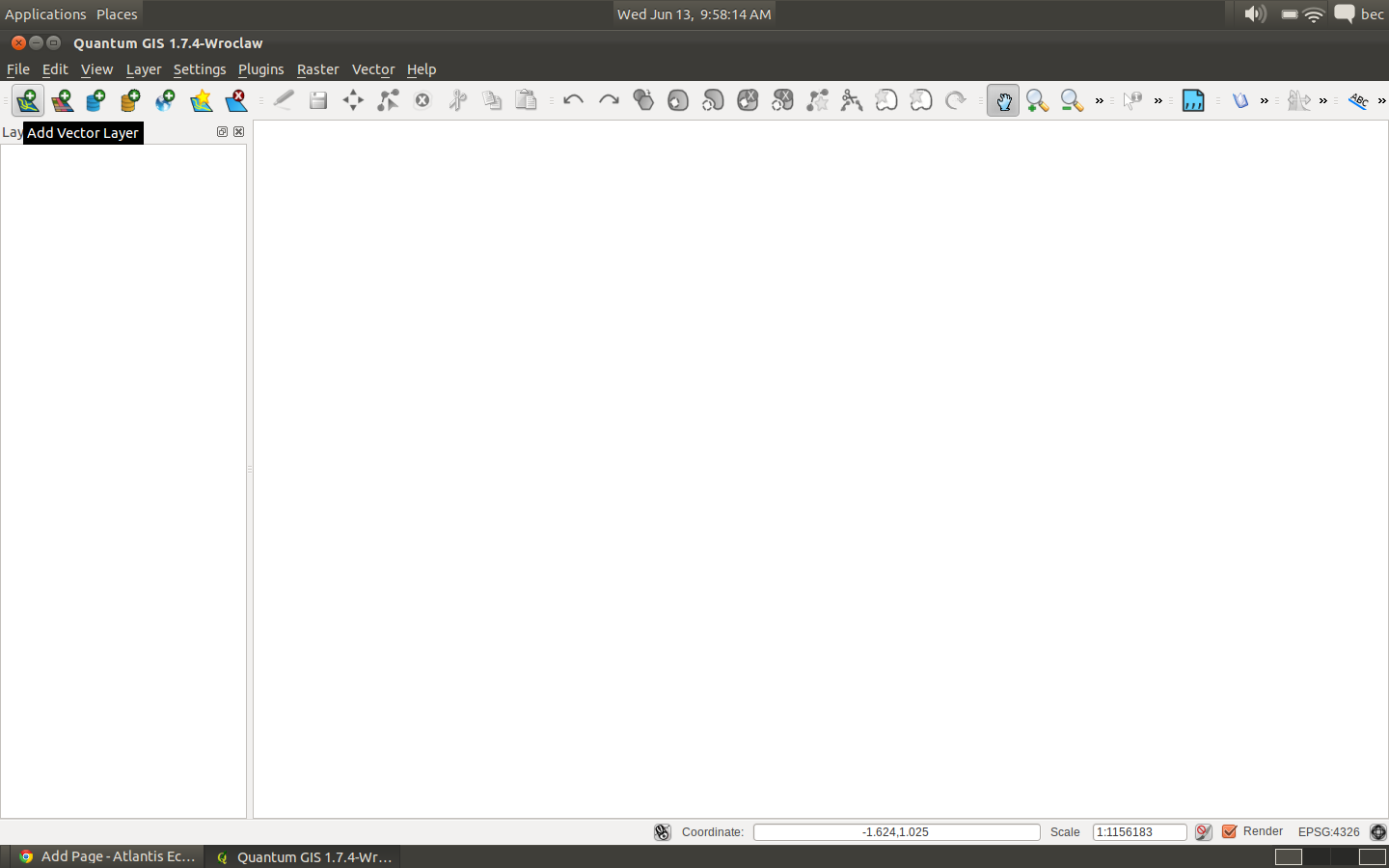
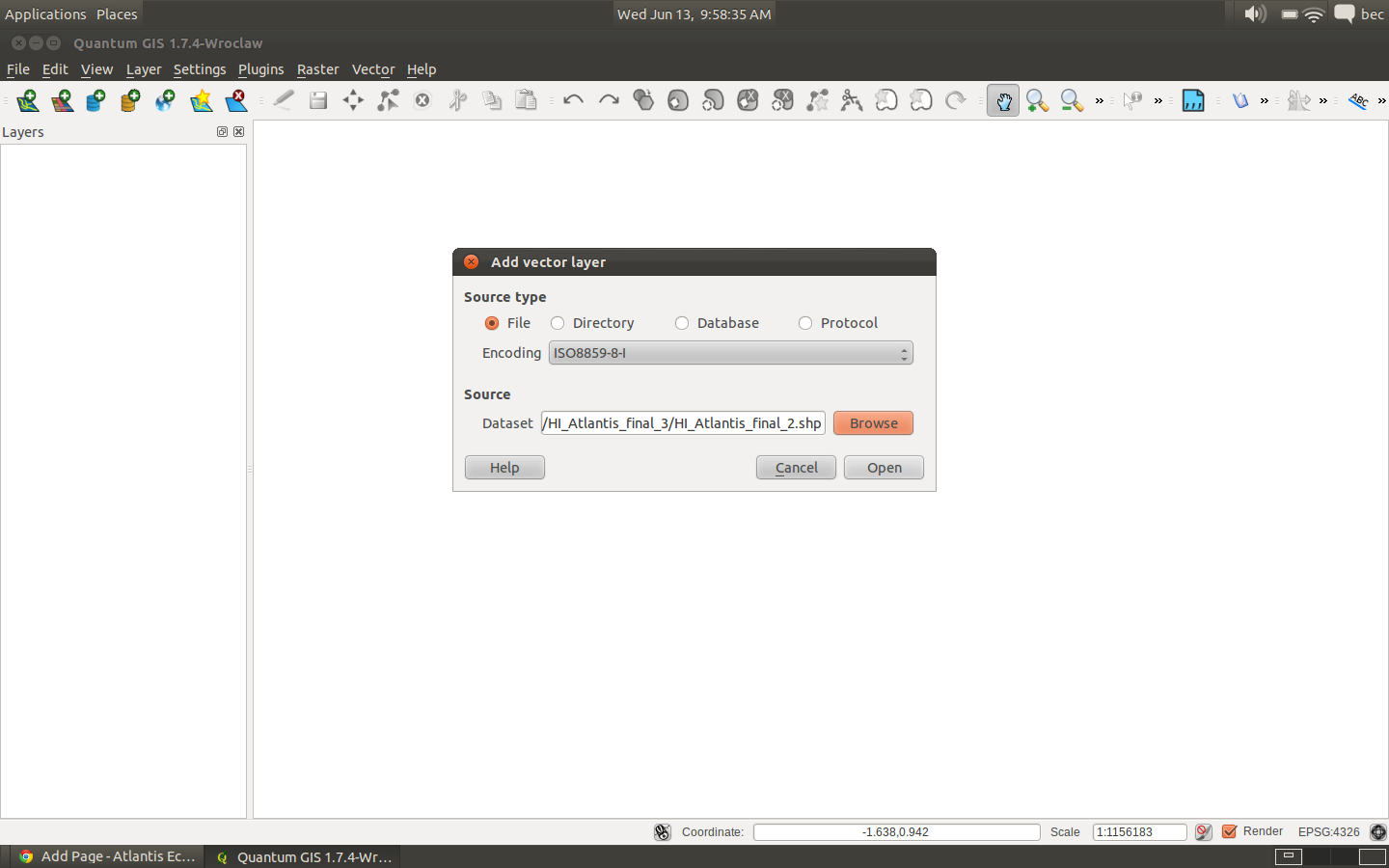
3. Save in WGS84 (lat/lon) projection.
Its recommended that you convert your shapefile to geographical projection before you clean it up. If required you can always change the projection once its nice and clean.
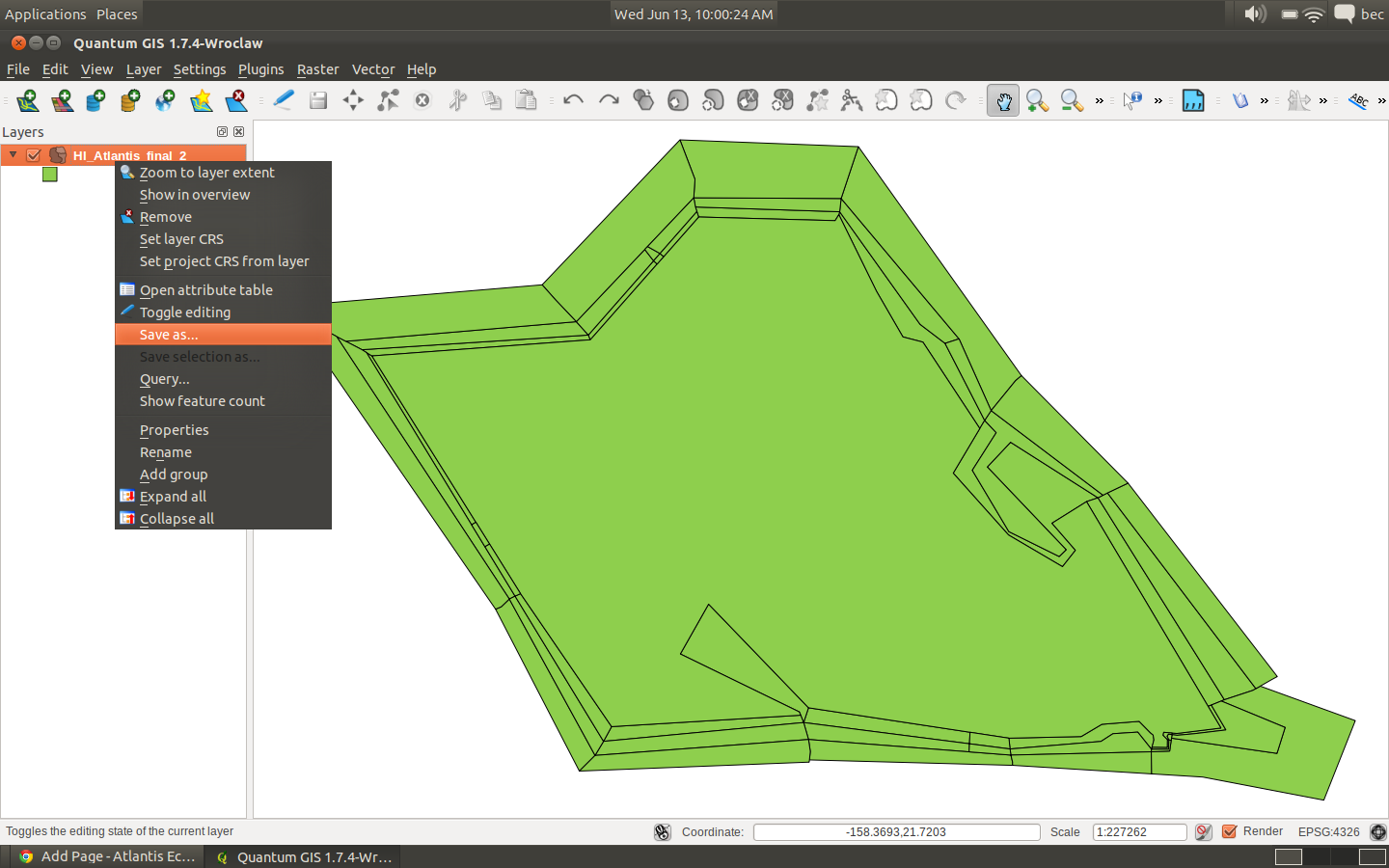
Right click on your layer in QGIS and select ‘Save As’. Make sure you give the new shapefile a different name and its a good idea to include information about the projection in the filename.
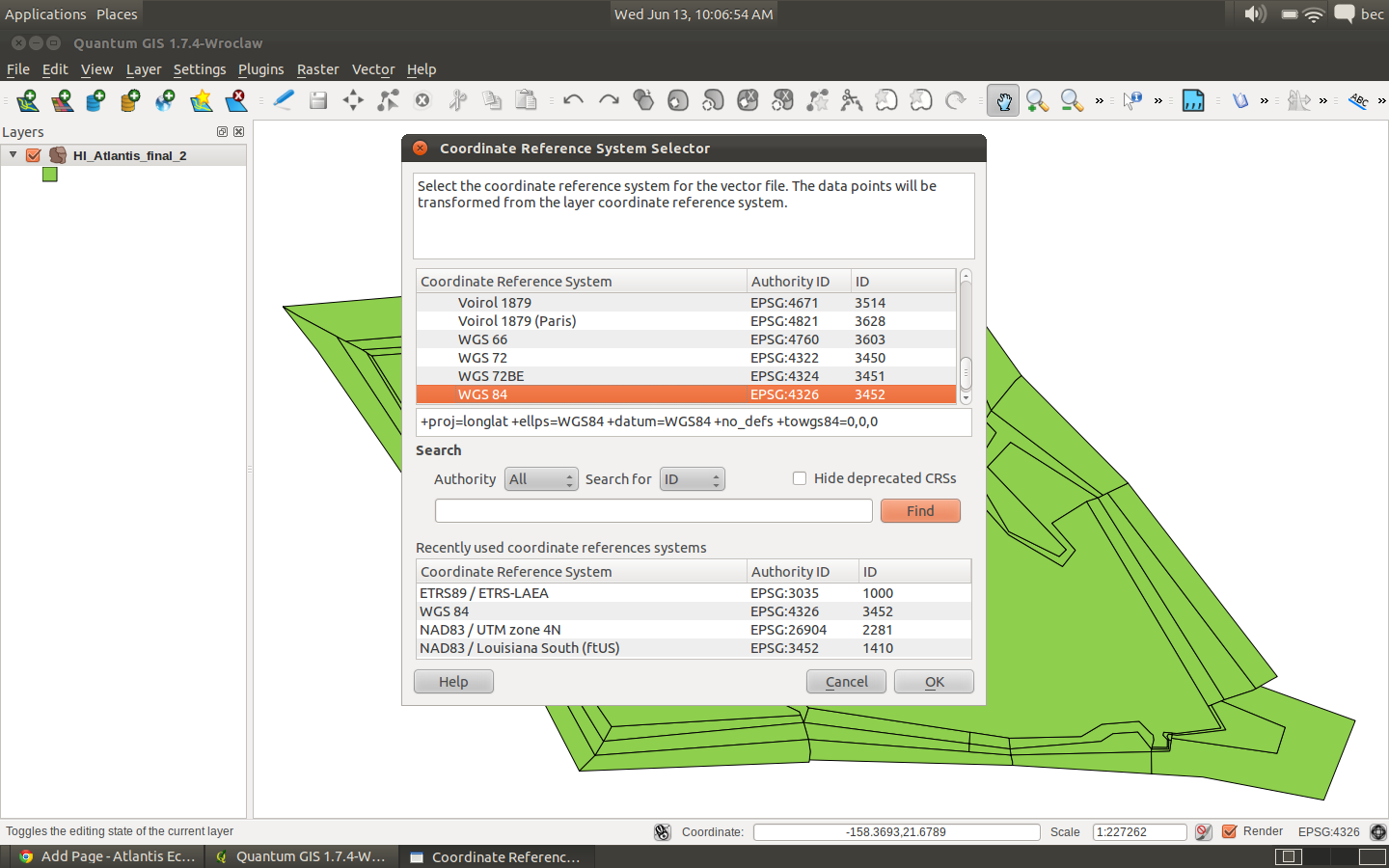
Click the Browse button next to the ‘CRS’ heading. At the top of the Coordinate System Reference table the is a Geographic Coordinate Systems tree. Expand this and scroll down to ‘WGS 84’. If you have done this before this CRS will be in the recently used table.
Click on ‘Browse’ to enter the new file - in this case we are going to call the new shapefile HI_Atlantis_final_2_geo.shp
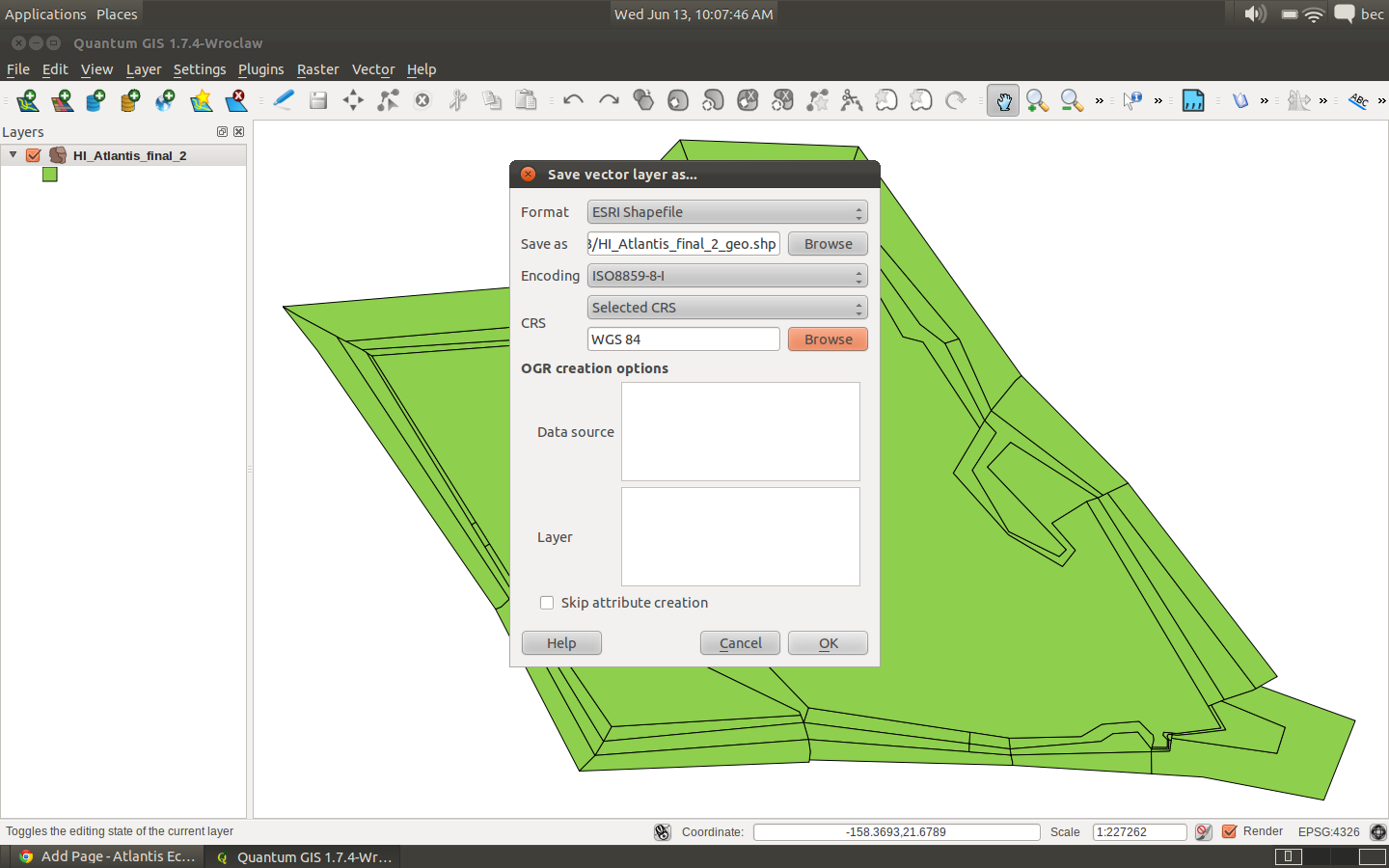
Click Ok a few times to save the new shapefile.
4. Load the new shapefile into QGIS.
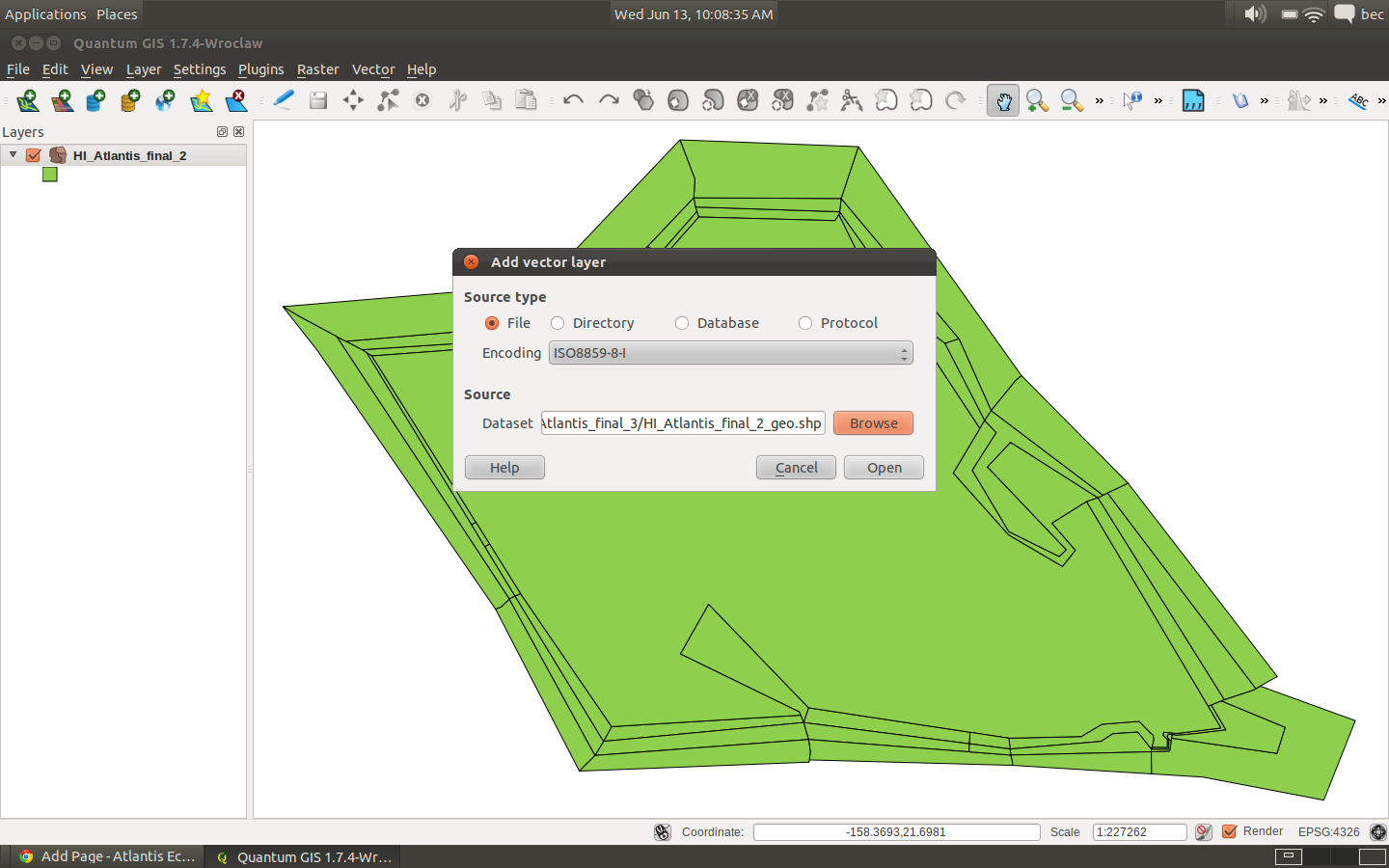
Its a good idea to remove the other shapefile you previously loaded so your workspace doesn’t get cluttered.
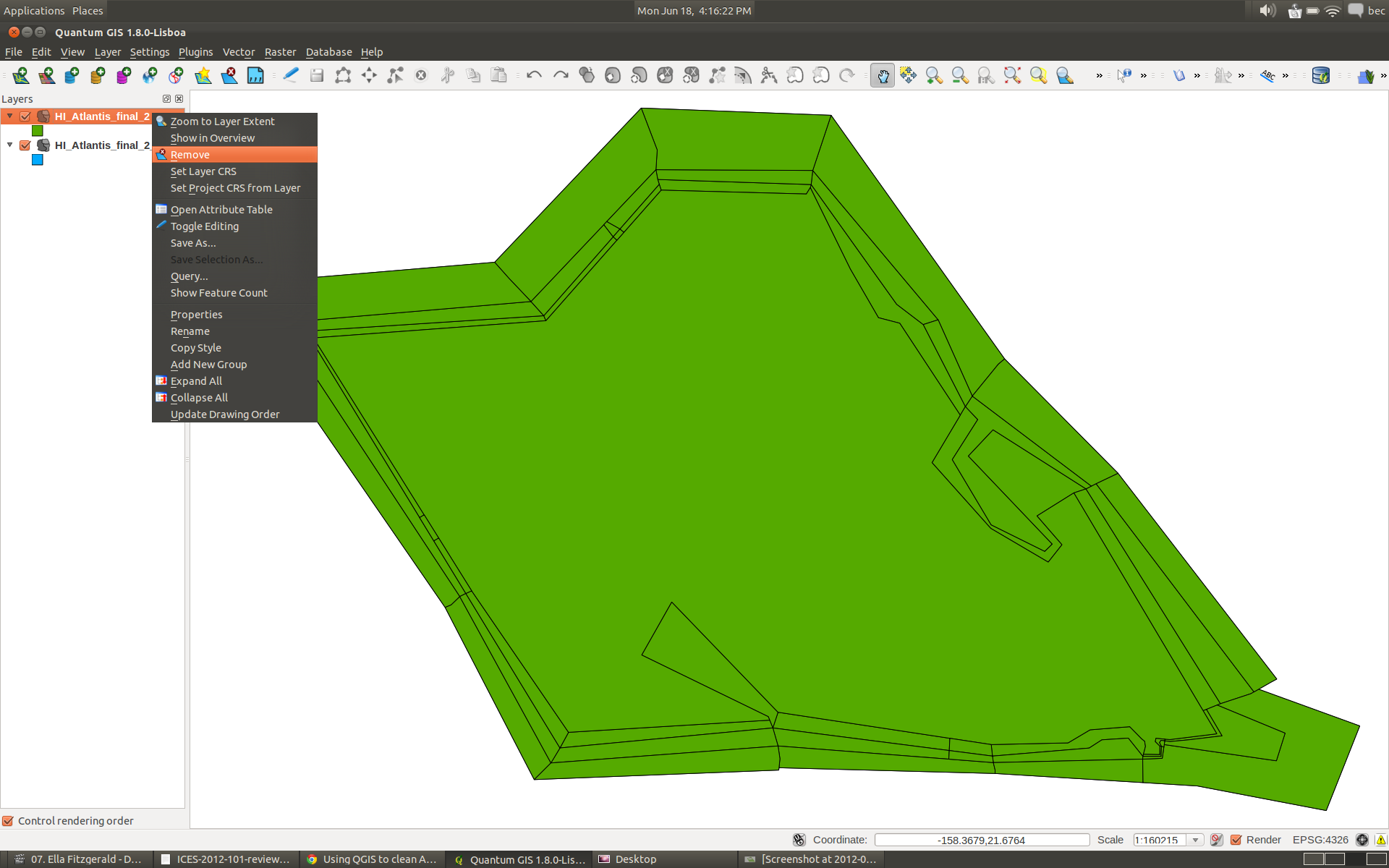
5. Try using the BGMeriser using this WGS 84 shapefile.
So this time you are using the newly named shapefile HI_Atlantis_final_2_geo.shp:
java -jar bgmeriser.jar -from “+proj=utm +zone=4 +ellps=GRS80 +datum=NAD83 +units=m +no_defs” -to “+proj=longlat +ellps=WGS84 +datum=WGS84 +no_defs” HI_Atlantis_final_2_geo.shp Hawaii60_ll_31062012.bgm
This results in the following error message:
[14-06-2012 16:04:25.289 - error] ApplicationManager: Exception: org.apache.commons.logging.Log
[14-06-2012 16:04:25.291 - info ] ApplicationManager.init: Started on: Linux at:14-06-2012 16:04:25.291
[14-06-2012 16:04:25.291 - info ] ApplicationManager.init: Home dir: /home/bec - work dir: /home/bec/BackedUp/Code/atlantis/GISData/Hawaii/HI_Atlantis_final_3
[14-06-2012 16:04:25.292 - info ] ApplicationManager.init: Java spec version: 1.6.0_23
Loading input shp file HI_Atlantis_final_2_geo.shp…
Done.
Writing out as bgm file to Hawaii60_ll_13062012.bgm…
You appear to have an island in the model; these should be represented by a box with zero depth.
Unable to create box model; quitting.
6. Create a new GRASS workspace
Select the ‘New Mapset’ option under the Plugins->GRASS menu. If you can’t see the GRASS plugin you might need to enable it Plugins->Manage Plugins-> Grass, or install it -
http://hub.qgis.org/projects/quantum-gis/wiki/Download Or http://grass.osgeo.org/wiki/Installation_Guide/
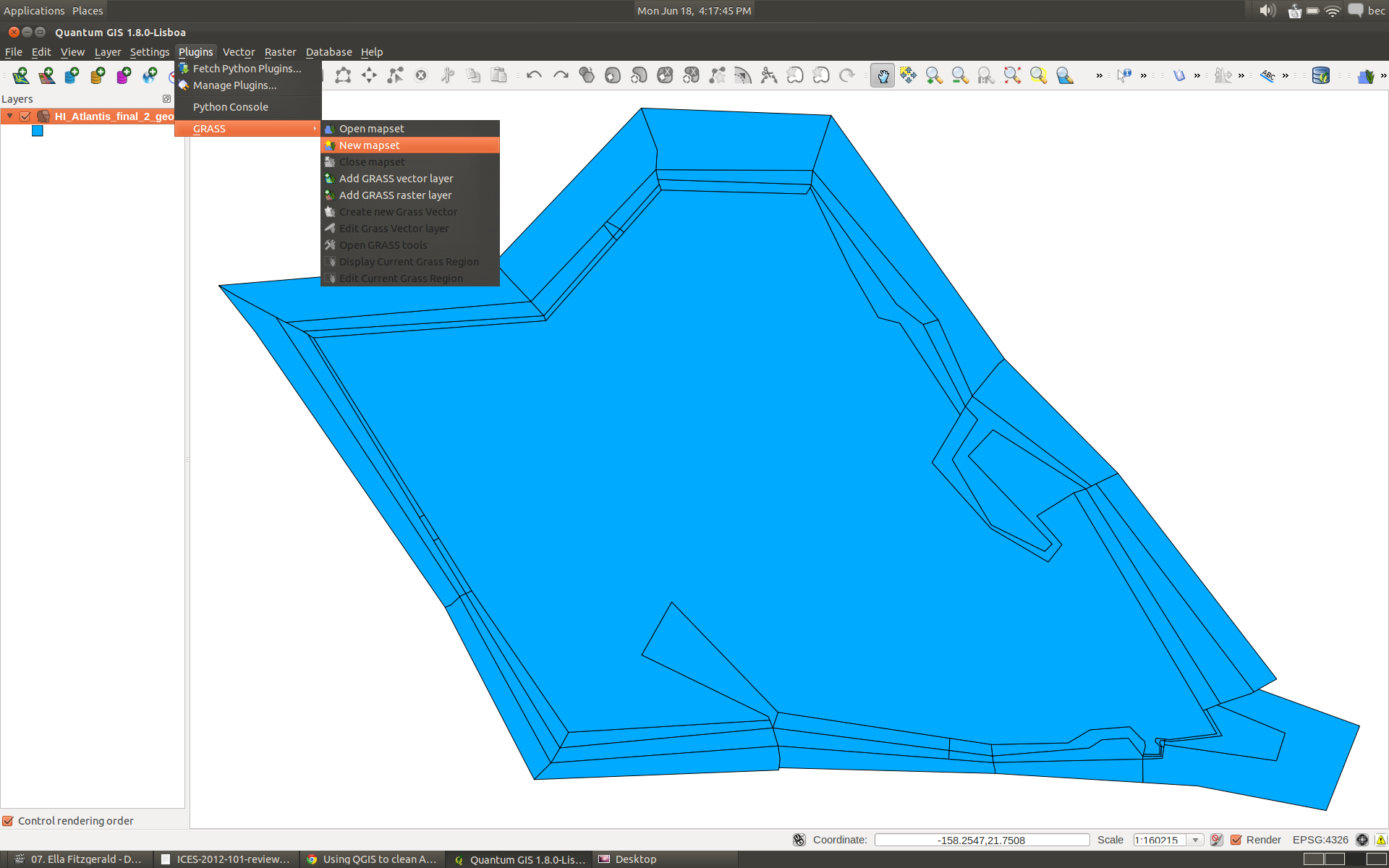
On the first pop-up window enter the directory you want to store your mapset files. Its a good idea to store the GRASS files in a separate folder to your model shapefiles.
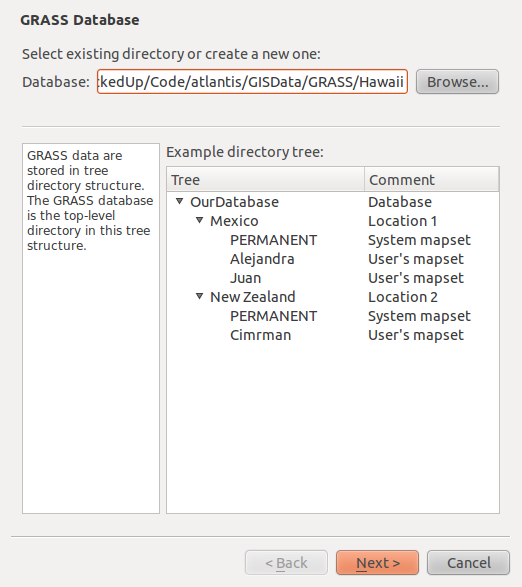
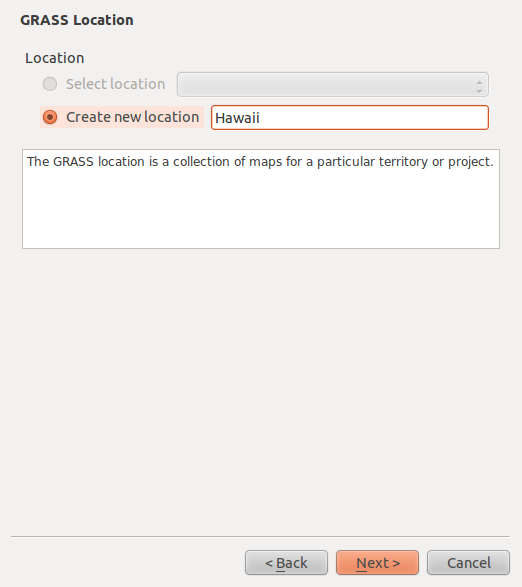
Create a new location.
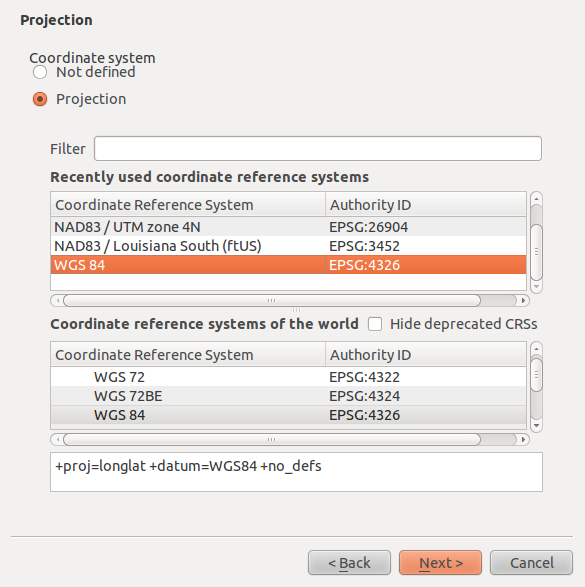
The projection should be ‘WGS84’.
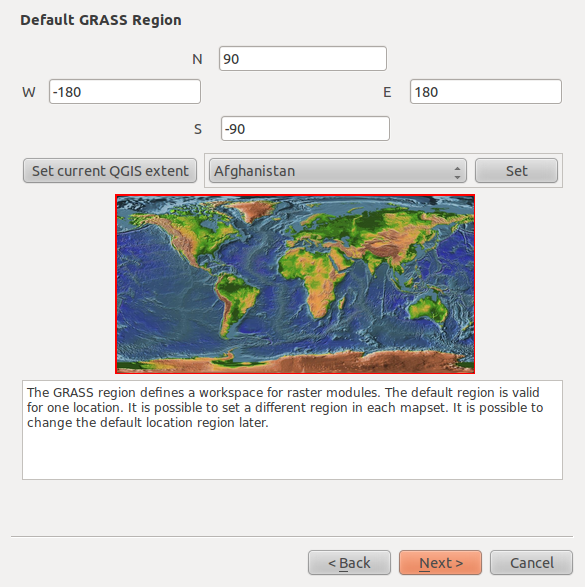
Leave the extents as the default given.
Enter the mapset name. Click next. Click OK until you are all done.
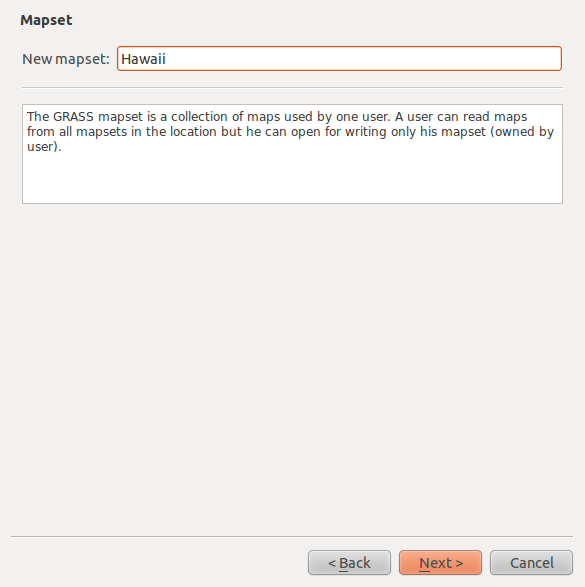
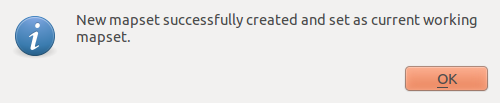
7. Open the GRASS toolbox.
Select ‘Open GRASS tools’ from the Plugins->GRASS menu.
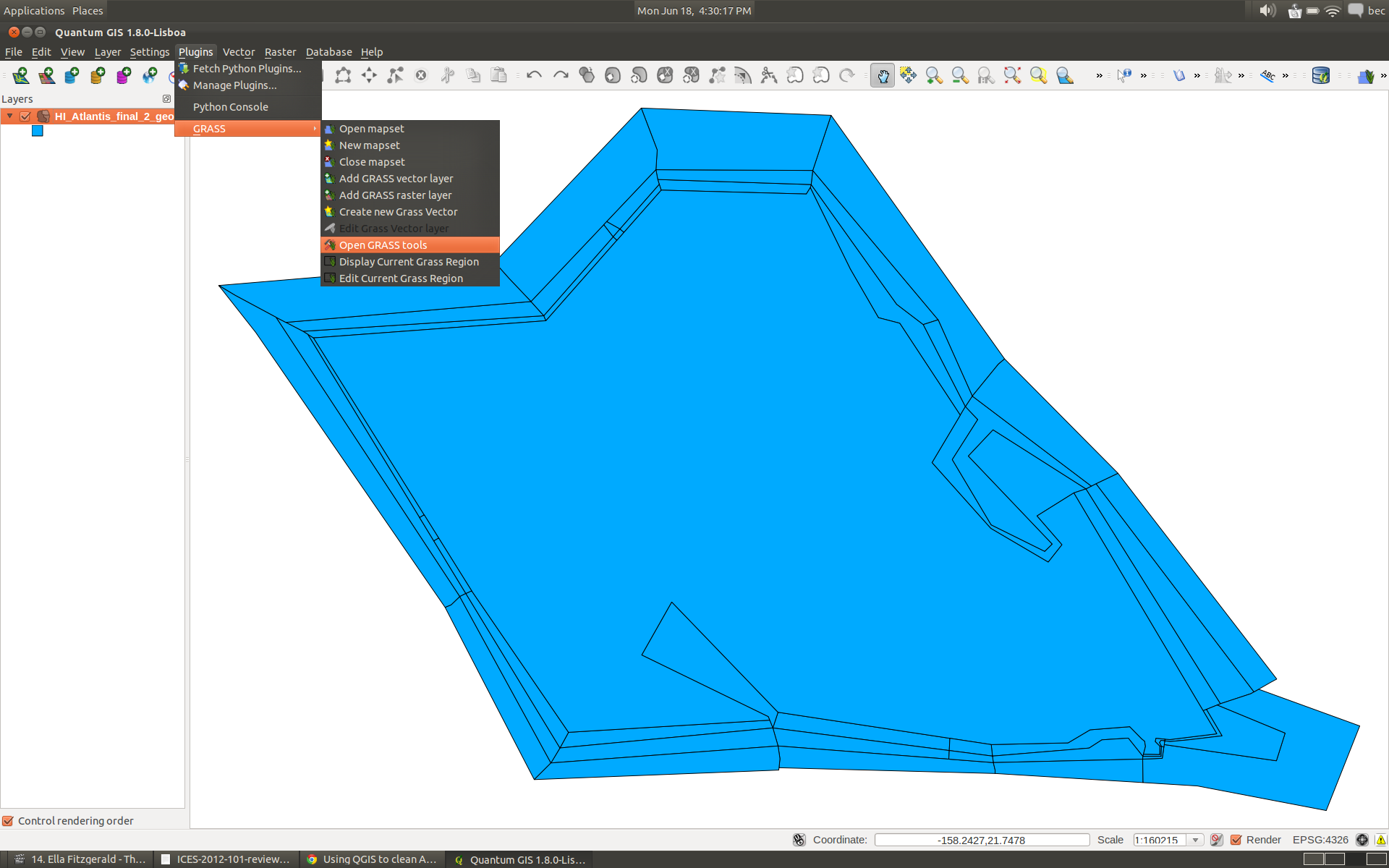
Import the HI_Atlantis_final_2_geo.shp shapefile into GRASS.
Under the ‘Modules Tree’ tab expand the ‘File management’ tree item, the expand ‘Import vector into GRASS’ and select the ‘Import loaded vector’
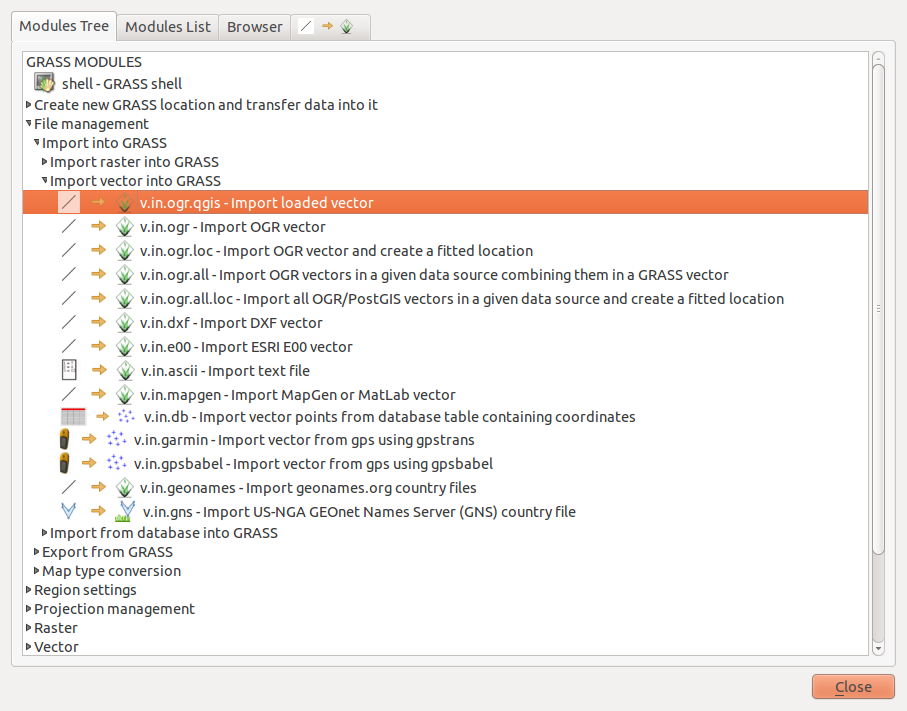
Select the shapefile name in the ‘Loaded Layer’ menu.
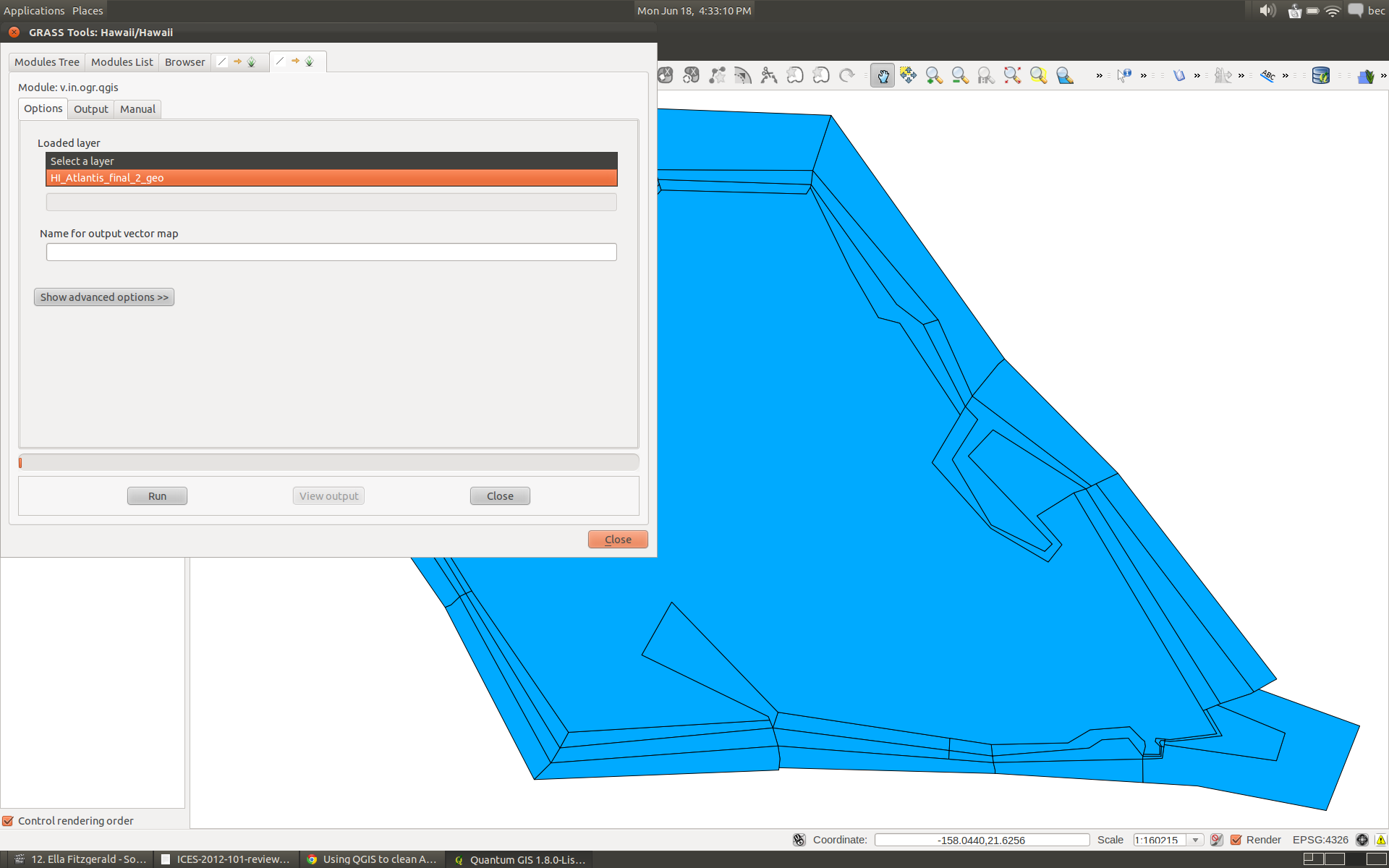
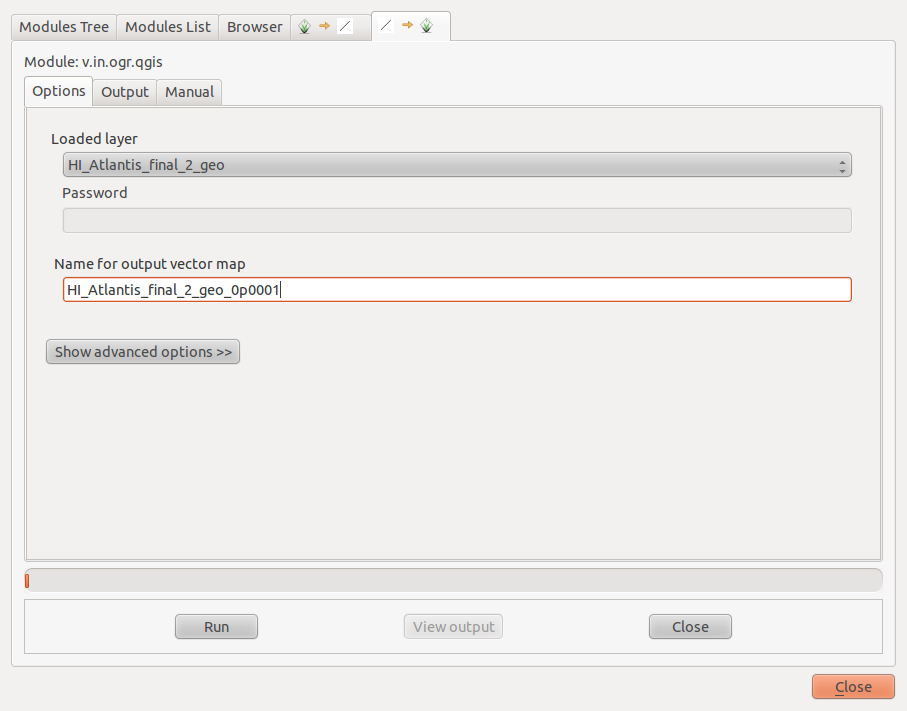
In the output vector map is a good idea to adopt a naming convention in case you have to repeat this step a number of times.
We are going to initially use a snapping value of ‘0.001’ so we will call the output file HI_Atlantis_final_2_geo_0p001 - see we are using the ‘p’ character to indicate where the decimal place is in the snapping value.
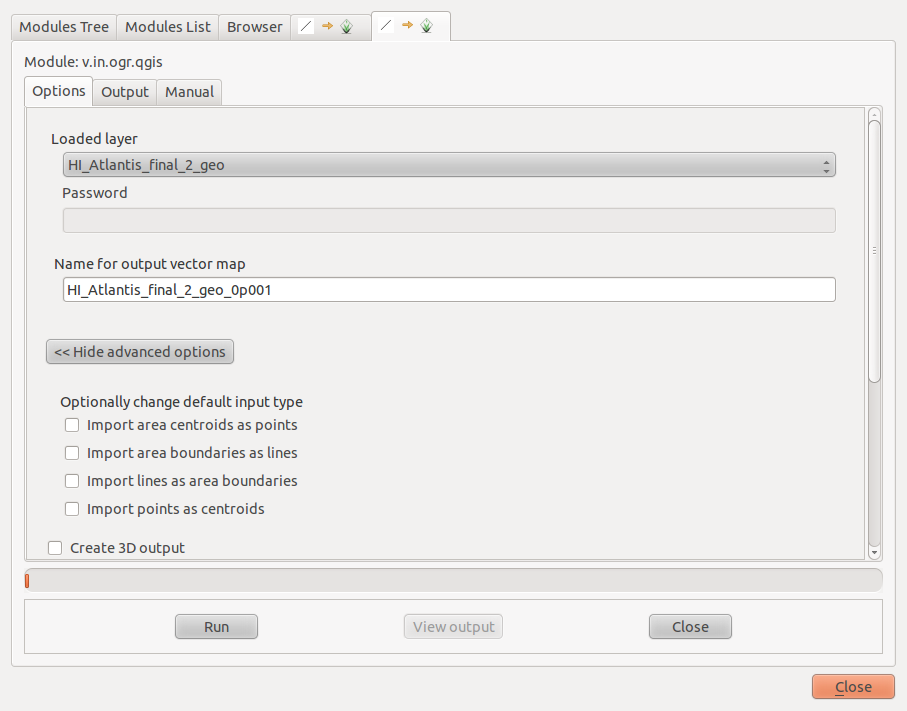
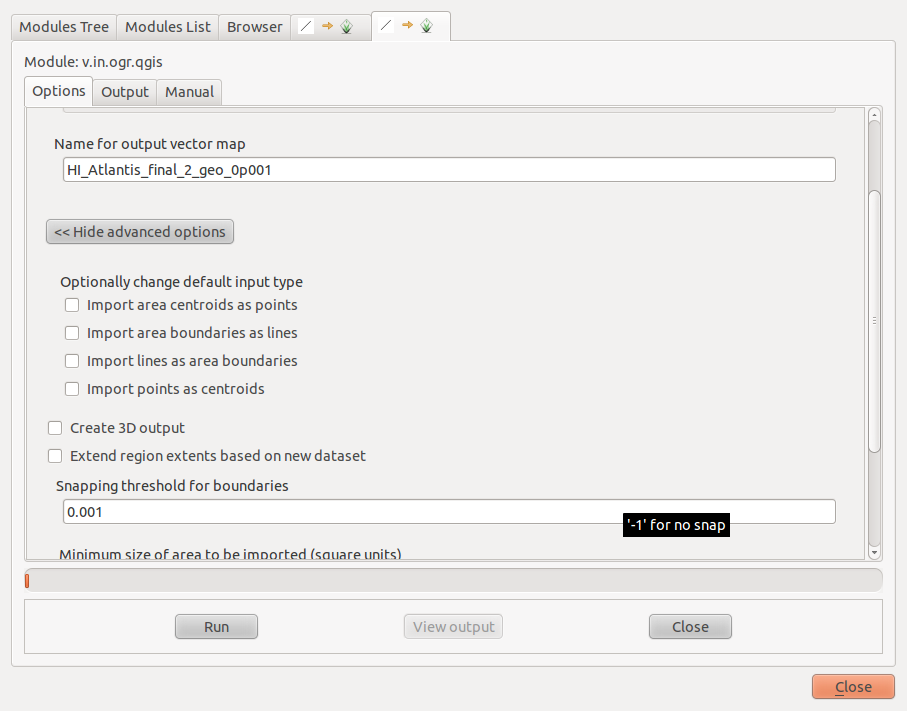
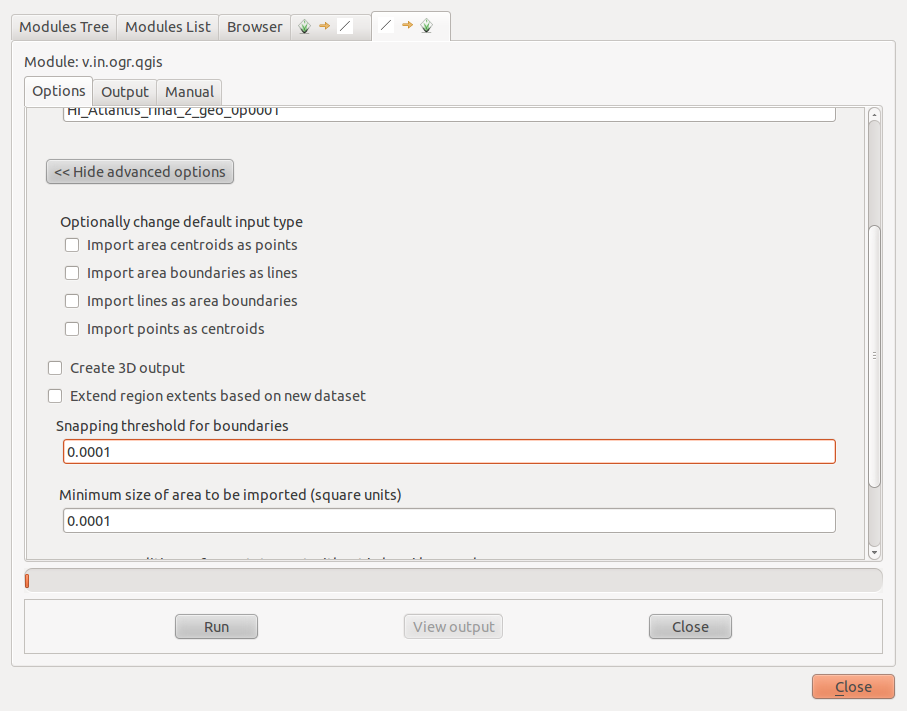
Click the ‘Show Advanced Options’ button to show more options. Enter the snapping value of ‘0.001’ and click run.
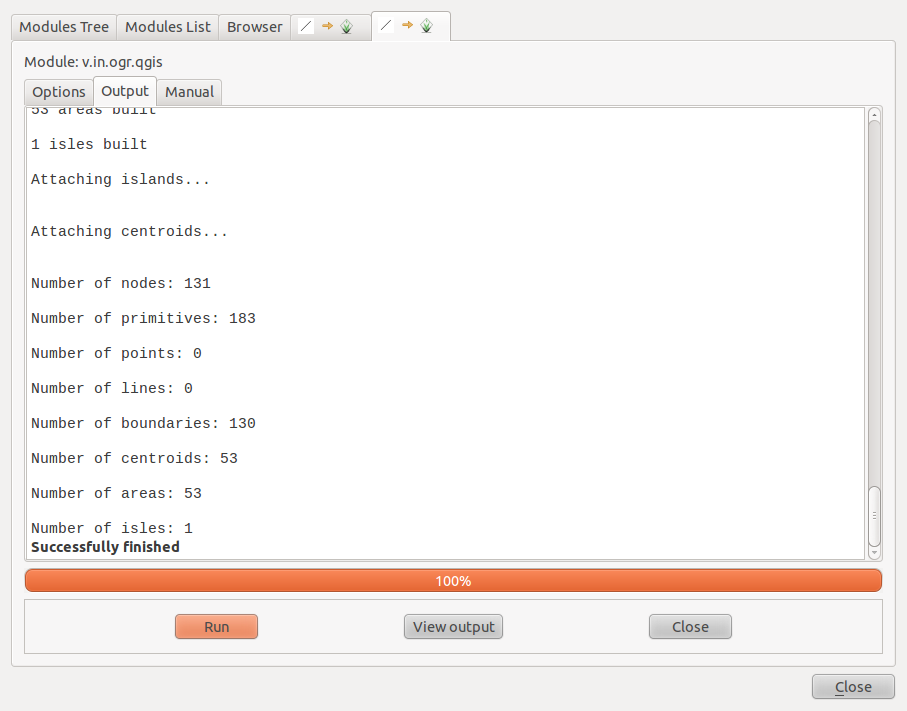
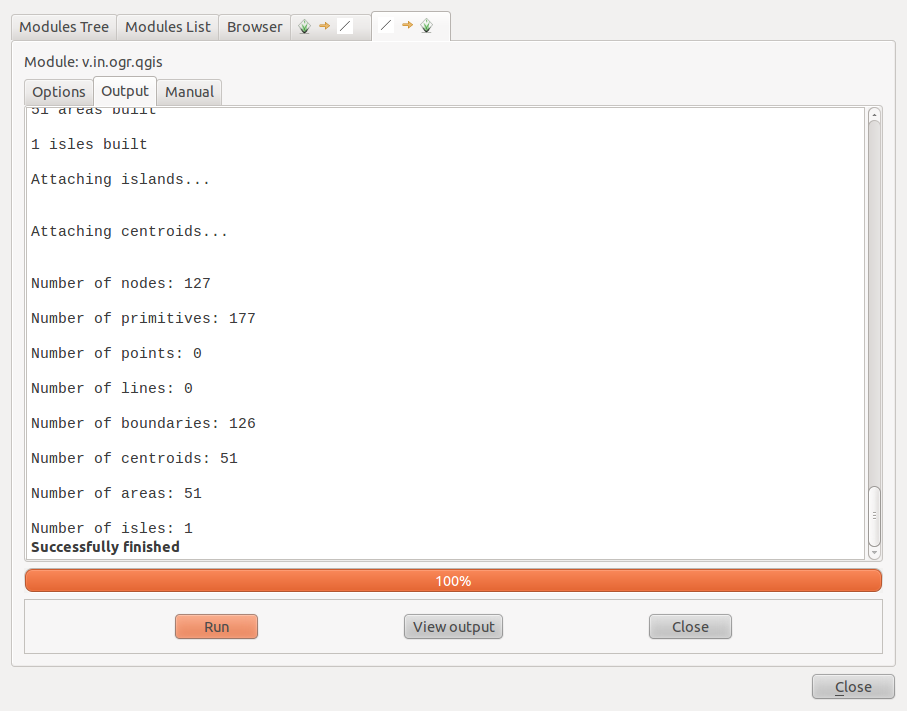
Then have a look at the output. Things to look for: - The #areas should be the same as the #centroids - These should be the same as the number of boxes you have.
As you can see from the screen capture below this import resulted in 53 centroids and 53 areas. So we don’t have any issues with holes or overlaps but we are supposed to have 51 boxes in this example so we need to decrease the snapping tolerance. The increase in the number of centriods indicates the snapping tolerance is too small and its creating additional polygons where edges are close together, but not close enough to snap together. If the number of centroids is less than the expected number of boxes then the snapping tolerance is too large collapsing polygons.
So we basically need to slowly decrease the size of the snapping tolerance until the number of centroids = number of areas = number of boxes.
For the sake of showing what would happen if the snapping tolerance isn’t a good value let turn snapping off:
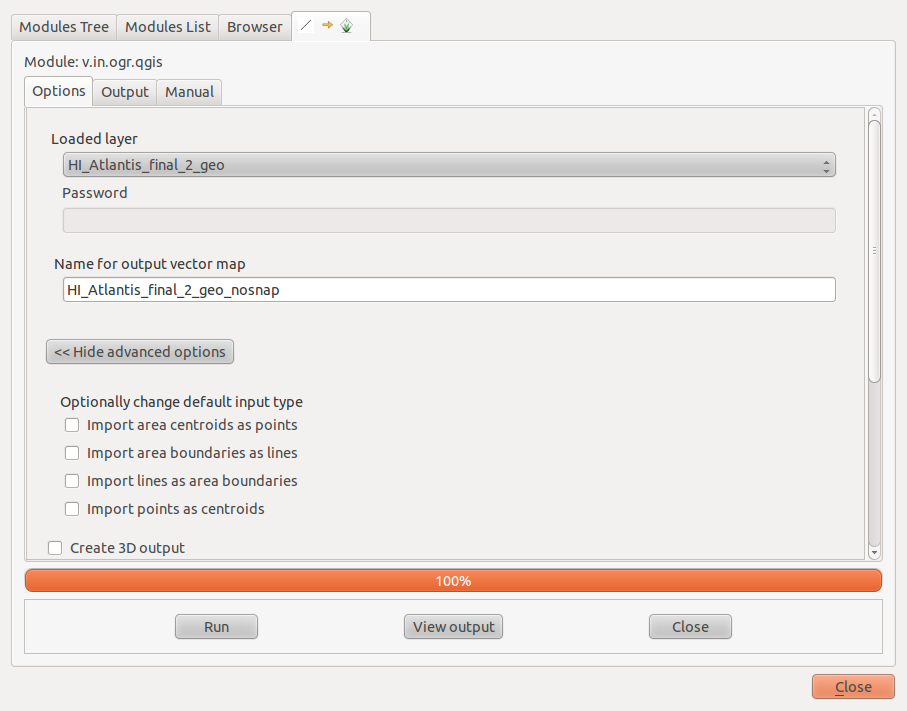
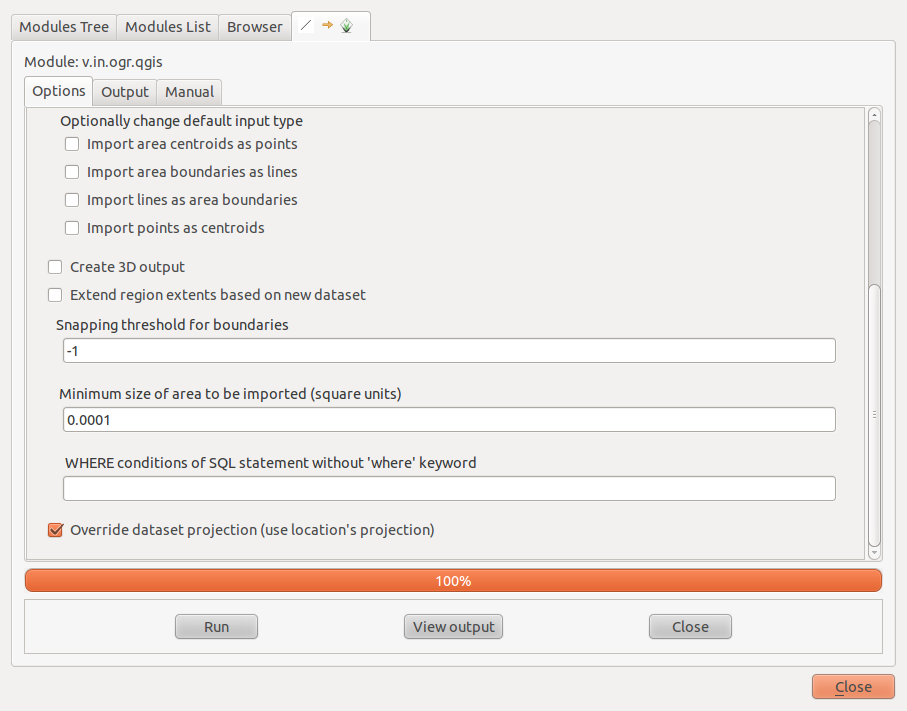
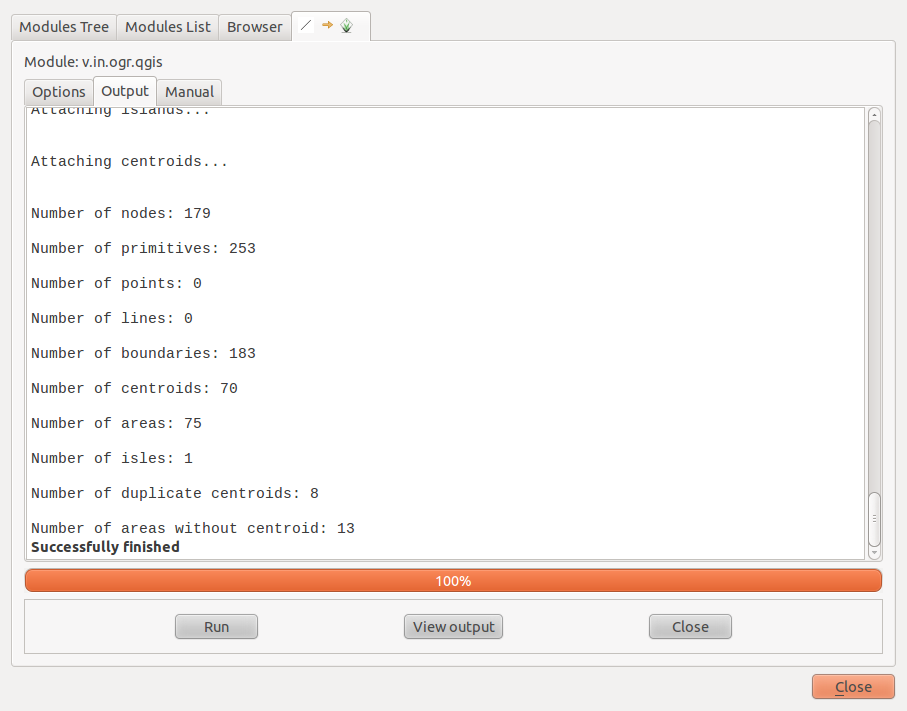
Looking at this output we can see that the number of areas is not the same as the number of centroids. And we are supposed to have 51 boxes.
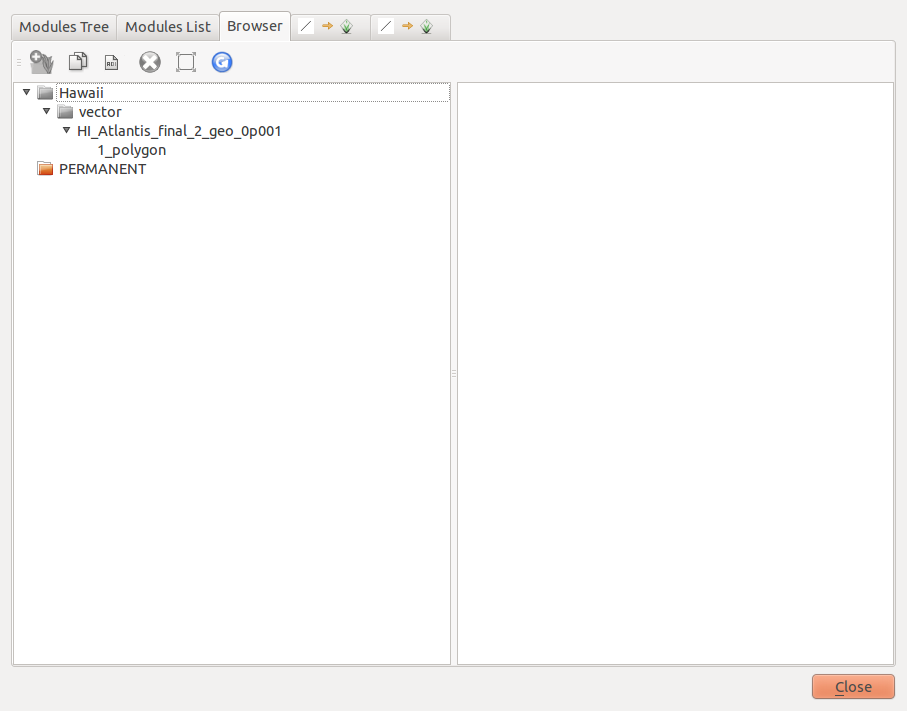
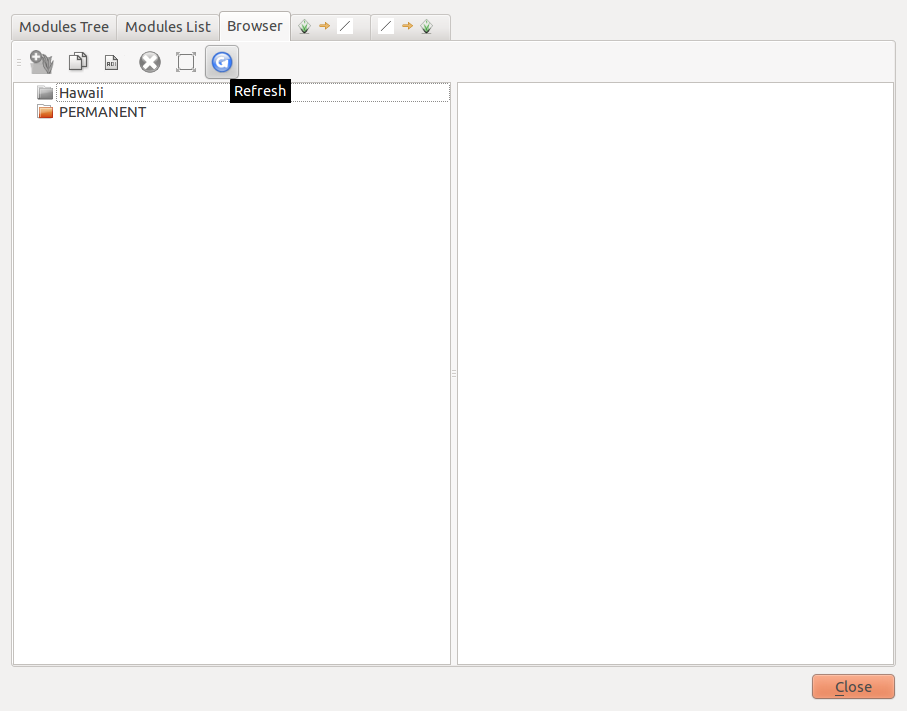
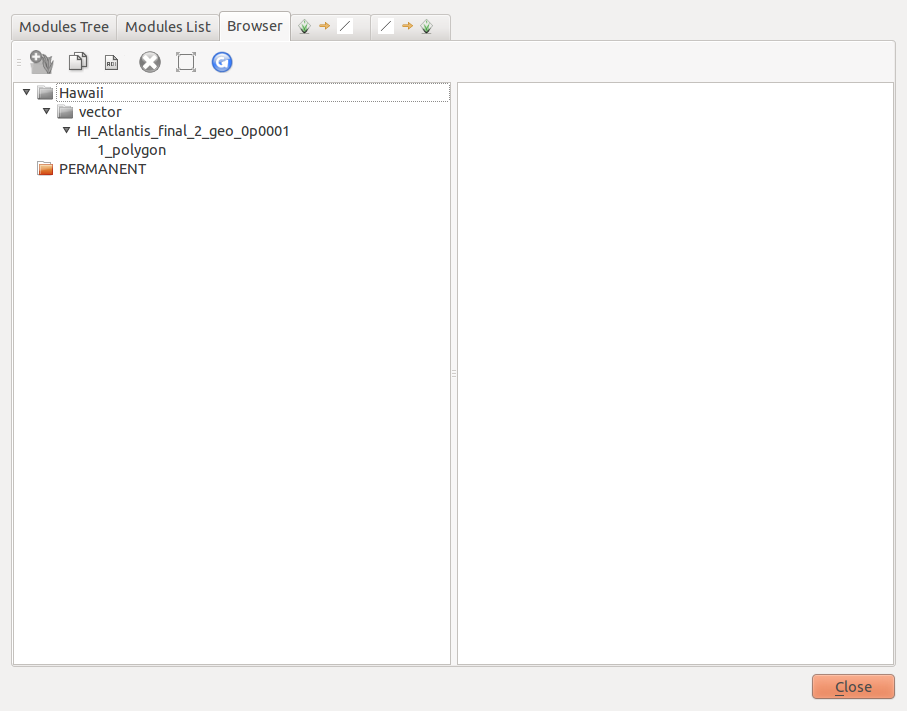
You can have a look at the output using the ‘Browser’ tab. You might have to click the refresh button. You can see in this example the importing process has resulting in three layers:
polygon_0 - these are the holes
polygon_1 - are the areas with one centroid
polygon_2 - are the area with two centroids (overlapped areas)
You can have a look at each of these by right clicking on the layer and selecting the ‘Add selected map to canvas’
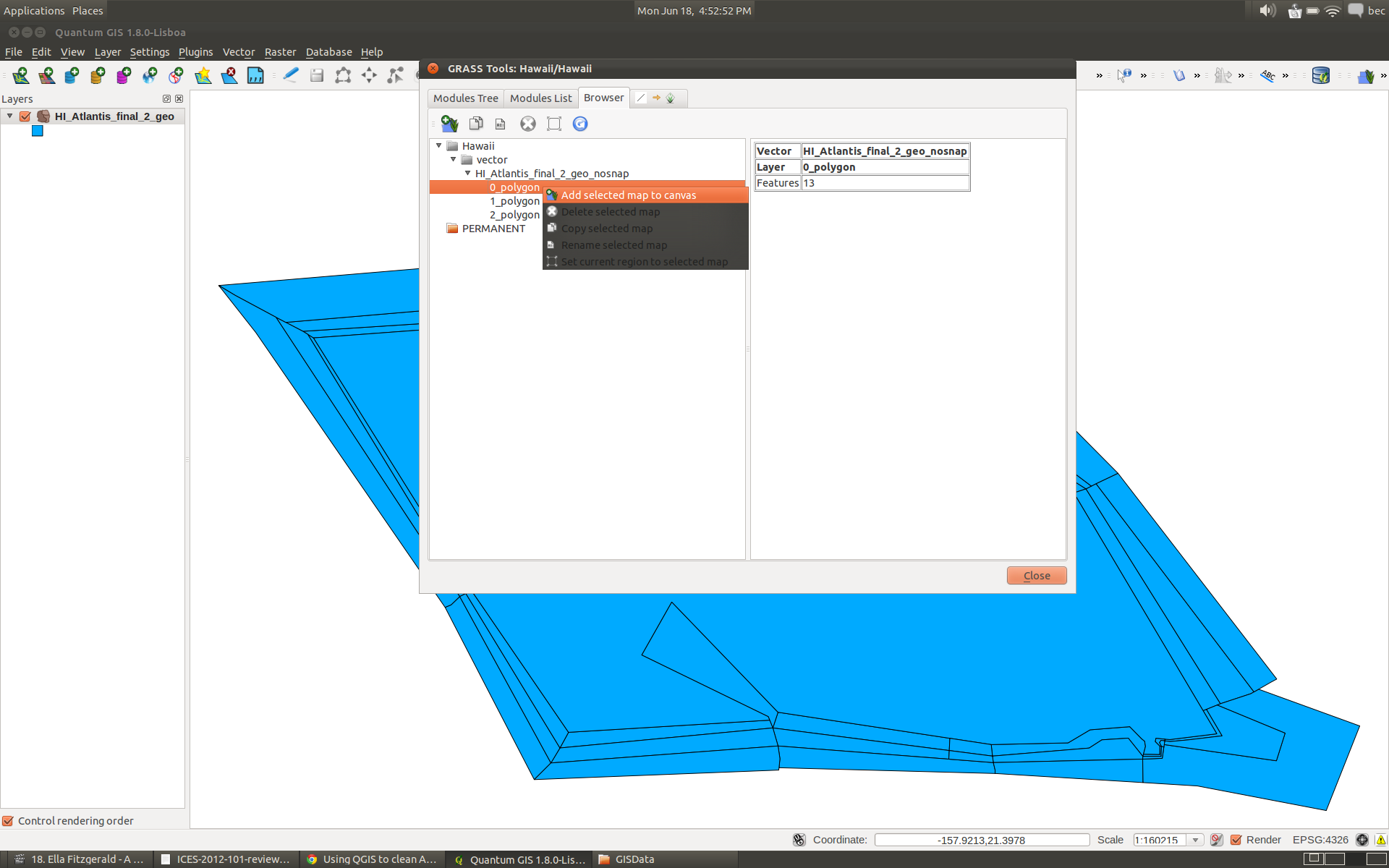
In this example the magic snapping tolerance is 0.0001. Once you are done view the add the newly created map (HI_Atlantis_final_2_geo_0p0001) to the canvas ready for export.
If you play around with your snapping tolerances and its still not working then chances are you will have to hand edit your shapefile. The three polygons created (polygon_0, polygon_1, and polygon_2) will be useful in working out where the issues are.
8. Export to a new Shapefile.
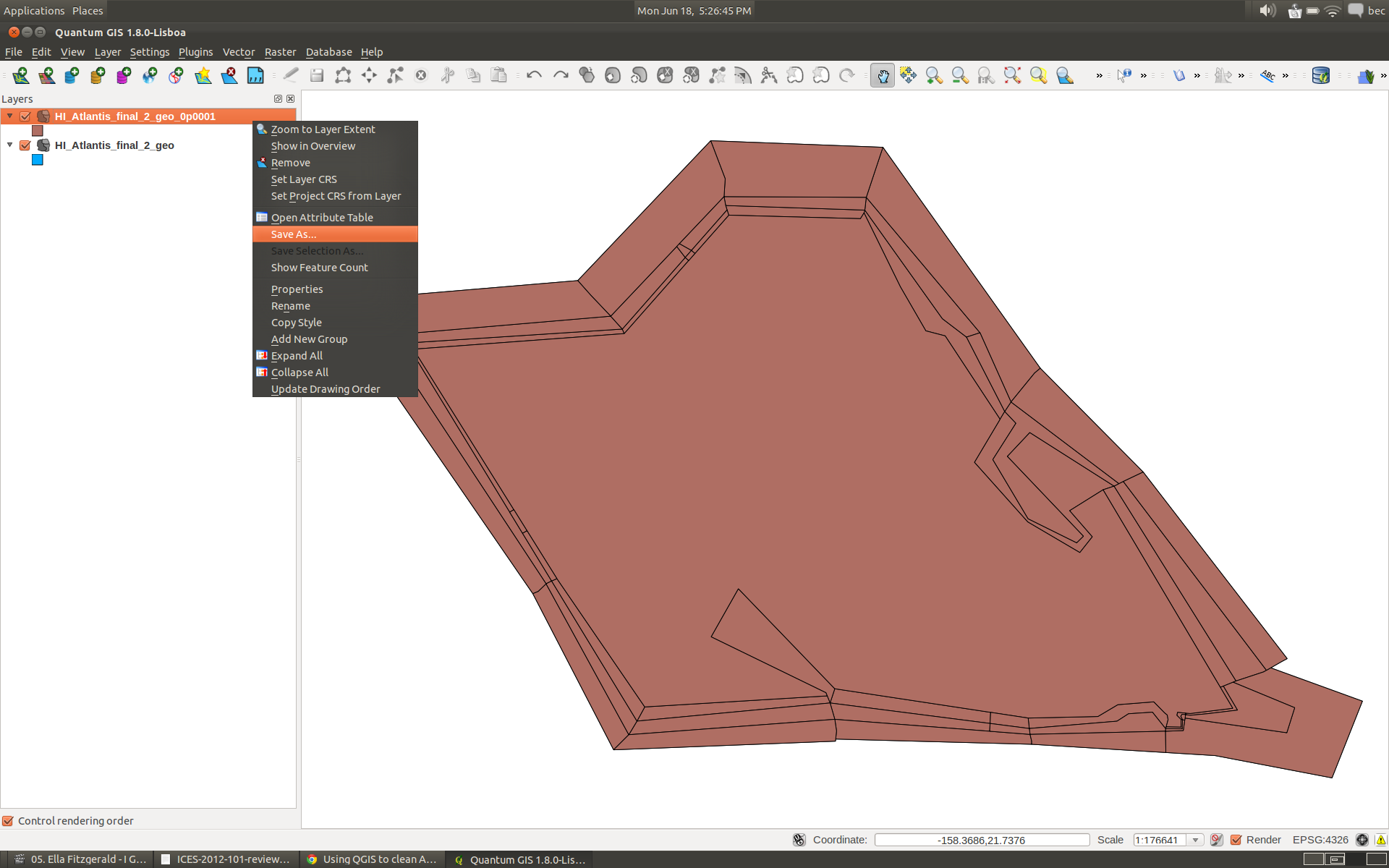
You can export the map to a shapefile simply by right clickin and selecting ‘Save As’.
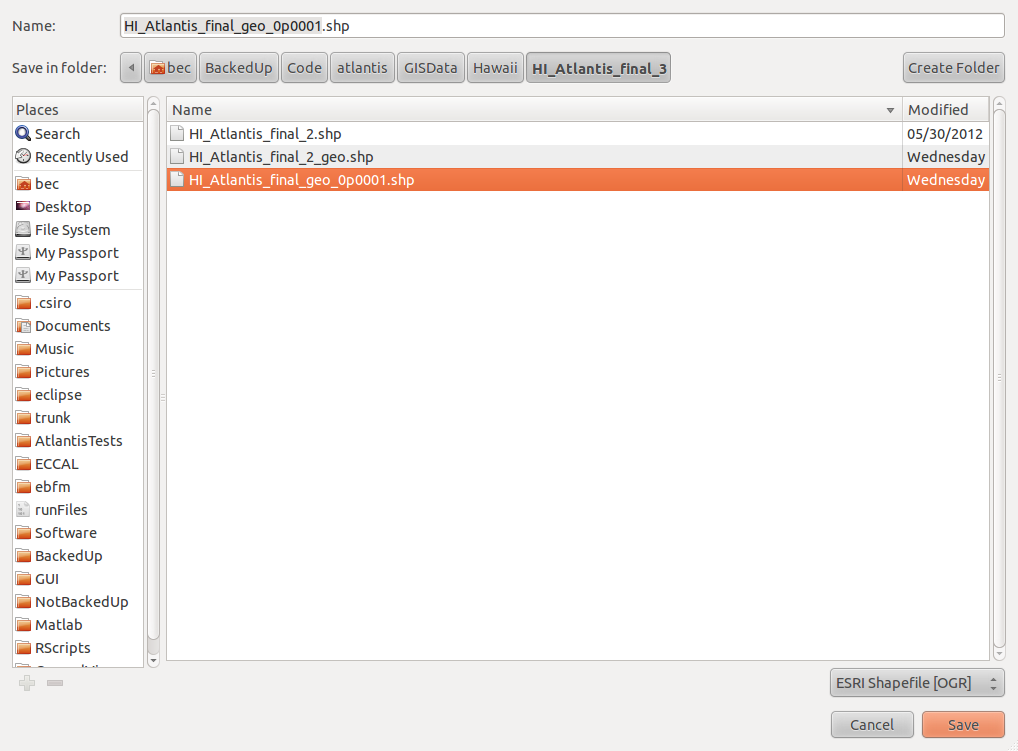
Remember to use a meaningful shapefile name - here we are calling the new shapefile HI_Atlantis_final_geo_0p0001.shp
At this stage its a good idea to load your new shapefile into QGIS and check the attribute table. Make sure all of your attributes are present and your box id values are still unique. If you have completed the tasks above correctly you shouldn’t hit any problems but if you have non-unique box-id values then chances are you haven’t.
9. Try using the BGMeriser again with the new shapefile”
To create a geographic projected bgm file from the geographic version of the shapefile the usage for the bgmeriser is:
Usage: bgmeriser -from
or: bgmeriser -as
java -jar bgmeriser.jar -as “+proj=longlat +ellps=WGS84 +datum=WGS84 +no_defs” HI_Atlantis_final_geo_0p0001.shp Hawaii60_ll_18062012.bgm
The output of this is:
[18-06-2012 18:21:04.889 - error] ApplicationManager: Exception: org.apache.commons.logging.Log
[18-06-2012 18:21:04.891 - info ] ApplicationManager.init: Started on: Linux at:18-06-2012 18:21:04.891
[18-06-2012 18:21:04.891 - info ] ApplicationManager.init: Home dir: /home/bec - work dir: /home/bec/BackedUp/Code/atlantis/GISData/Hawaii/HI_Atlantis_final_3
[18-06-2012 18:21:04.891 - info ] ApplicationManager.init: Java spec version: 1.6.0_23
Loading input shp file HI_Atlantis_final_geo_0p0001.shp…
Done.
Writing out as bgm file to Hawaii60_ll_18062012.bgm…
Done
[18-06-2012 18:21:04.889 - error] ApplicationManager: Exception: org.apache.commons.logging.Log
[18-06-2012 18:21:04.891 - info ] ApplicationManager.init: Started on: Linux at:18-06-2012 18:21:04.891
[18-06-2012 18:21:04.891 - info ] ApplicationManager.init: Home dir: /home/bec - work dir: /home/bec/BackedUp/Code/atlantis/GISData/Hawaii/HI_Atlantis_final_3
[18-06-2012 18:21:04.891 - info ] ApplicationManager.init: Java spec version: 1.6.0_23
Loading input shp file HI_Atlantis_final_geo_0p0001.shp…
Done.
Writing out as bgm file to Hawaii60_ll_18062012.bgm…
Done
10. Projected version
You will need an equal area projected bgm file for use in Atlantis. Atlantis requires a bgm file where the units are meters instead of degrees. To create the projected version from the geographic version we are using the following command:
java -jar bgmeriser.jar -from “+proj=longlat +ellps=WGS84 +datum=WGS84 +no_defs” -to “+proj=utm +zone=4 +ellps=GRS80 +datum=NAD83 +units=m +no_defs” HI_Atlantis_final_geo_0p0001.shp Hawaii60_utm_18062012.bgm
Which results in the following:
[18-06-2012 18:24:50.253 - error] ApplicationManager: Exception: org.apache.commons.logging.Log
[18-06-2012 18:24:50.255 - info ] ApplicationManager.init: Started on: Linux at:18-06-2012 18:24:50.255
[18-06-2012 18:24:50.255 - info ] ApplicationManager.init: Home dir: /home/bec - work dir: /home/bec/BackedUp/Code/atlantis/GISData/Hawaii/HI_Atlantis_final_3
[18-06-2012 18:24:50.255 - info ] ApplicationManager.init: Java spec version: 1.6.0_23
Loading input shp file HI_Atlantis_final_geo_0p0001.shp…
Done.
Writing out as bgm file to Hawaii60_utm_18062012.bgm…
Done.
And we are all done.