TortoiseSVN
Getting the Atlantis code from the Subversion code repository.
Install Tortoise SVN from https://tortoisesvn.net/
Create a folder for your source code. If you have an existing copy of the code i would not recommend checking out the code to the same location - either delete your existing code (after creating a backup) or create a new folder location.
I don’t recommend ever using a path that has spaces in it - so don’t check out your source code in the “My Documents” folder.
My new code location is c:
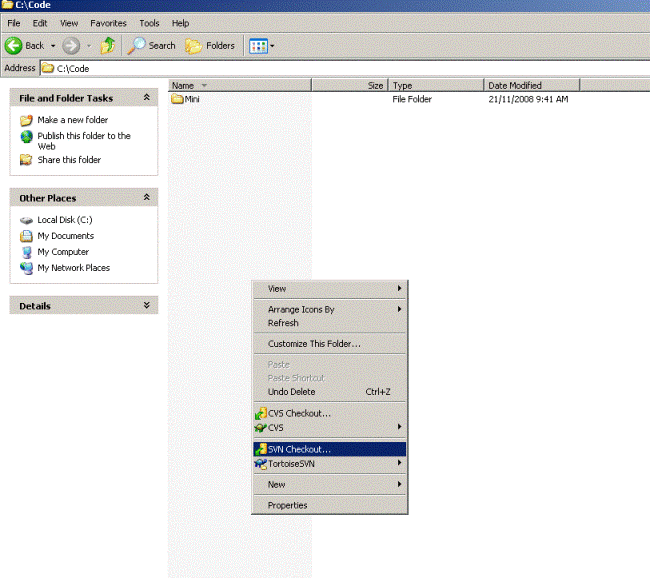
Right click in your new folder and select the new menu option “SVN checkout”
Enter the appropriate URL into the ‘URL of the Repository’ field. See Getting the source code for information about which url you should be using.
The checkout directory should be the final location where you want the code to be. In my case i want it to be check out to c:. SVN will create the atlantis directory.
Make sure the ‘HEAD revision’ option is selected in the Revision section.
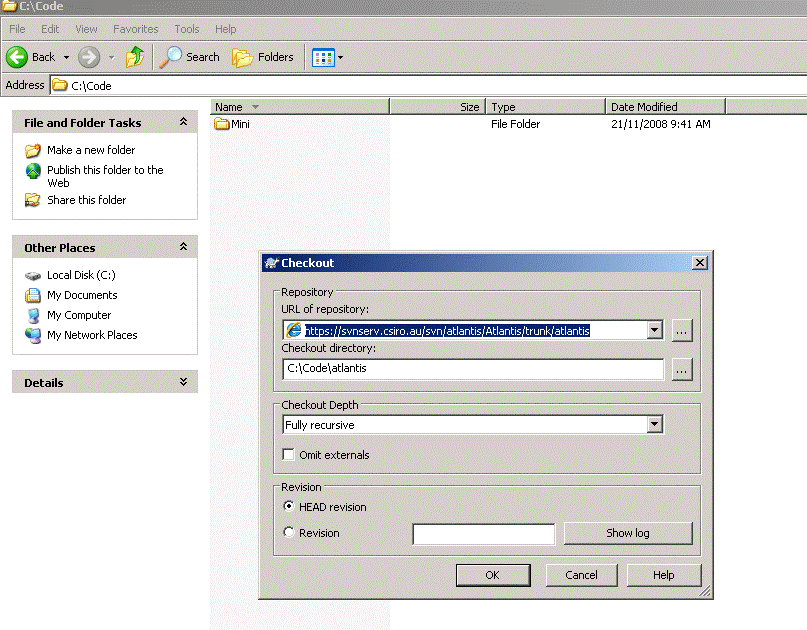
Then click OK.
You will be asked to authenticate. If you are a CSIRO user then enter your NEXUS username and password. If you are a CSIRO external partner then use your partner domain username and password. (You do not need to enter the domain).
If you are repeatedly asked for your username and password then there will be something wrong with the permissions - contact Bec for help.
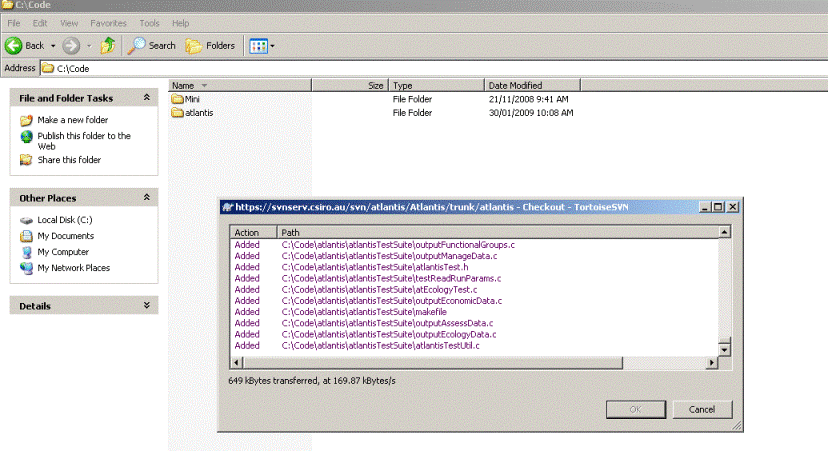
You should now have the Atlantis source code as you are used to it. To compile open the atlantis.sln Visual studio project file by double clicking on it. The build all.
Updating your code.
To do an SVN update right click on your source folder and select SVN update from the context menu.
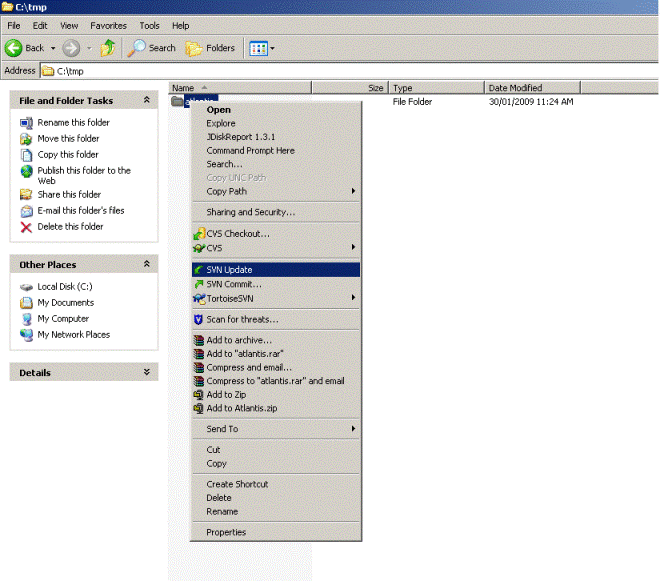
If you get a conflict it means you have changed the same section of code an another person. See https://www.projects.dev2dev.bea.com/Subversion%20Clients/TortoiseSVN.qmd#usage
for a good tutorial on using TortoiseSVN.