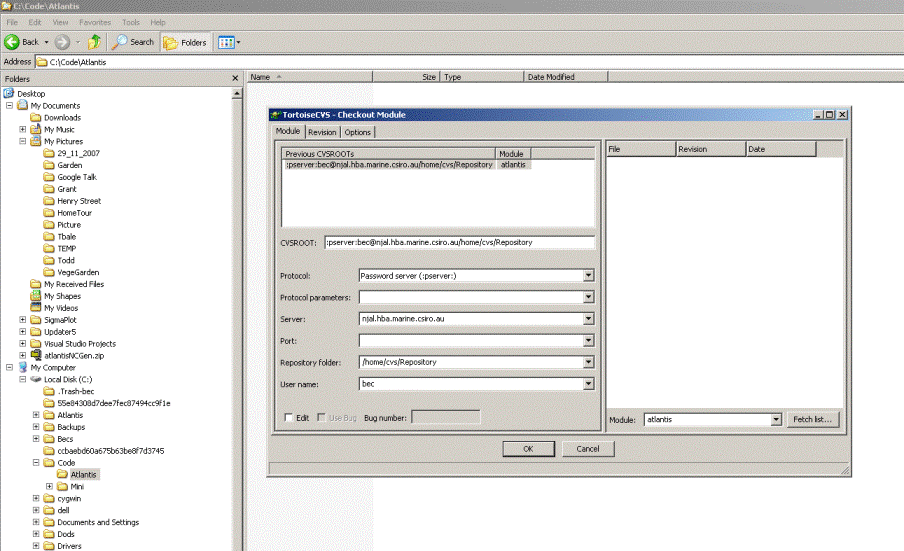
TortoiseCVS
If you are assessing the CVS repository from off the hobart site you will need to use PuTTY to connect to the cvs server before you can check out the code. If you are in the hobart site you can ignore these instructions. Note these are a temportary work around. We will hopefully be migrating to a SVN repostory soon which will sort all this nastiness out.
Using PuTTY
Note if you have to use PuTTY to connect to the cvs server you will always have to connect to it using PuTTY before you can do a cvs update.
Step 1: Install PuTTY
If you are using Windows then install putty from http://www.chiark.greenend.org.uk/~sgtatham/putty/download.html. Download the windows binary file called putty.exe.
Once this is installed open PuTTY from the Programs menu.
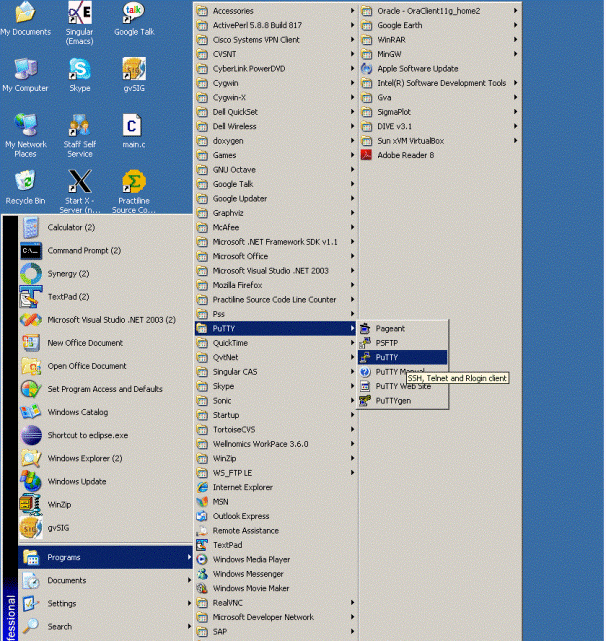
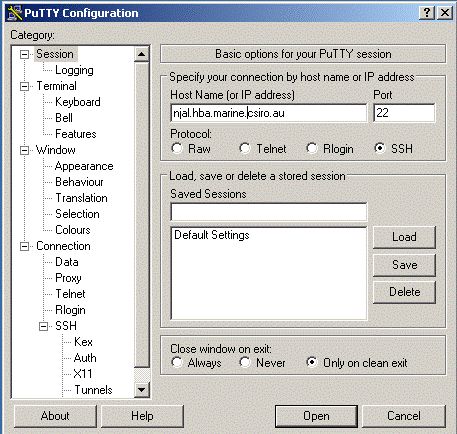
Step 2: Define the Host Name
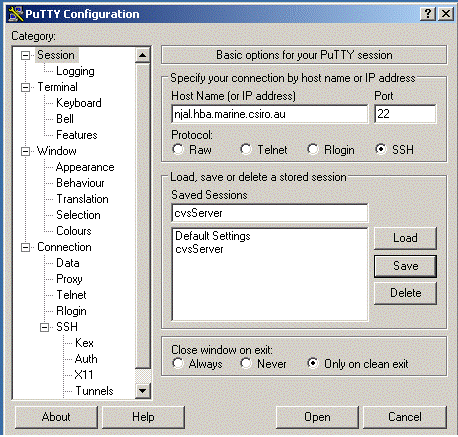
Under the session Category type in the host name of the cvs server:
njal.hba.marine.csiro.au
and make sure the port is 22.
Step 3: Set up port tunnelling
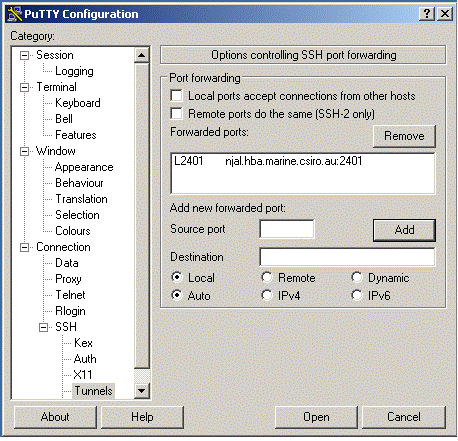
Then under the Connection->SSH->Tunnels under the Add new forwarded port type 2401 into the Source port field and njal.hba.marine.csiro.au:2401 under the destination port.
Then click the add button
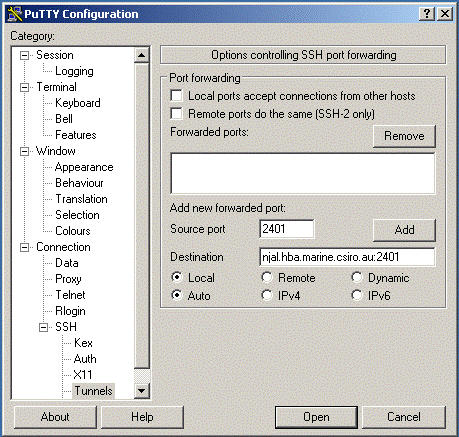
Once you have done this it should look like this:
Step 4: Save the settings for next time
Go back to the Session category and type a name into the Saved Sessions field for these session details such as cvsServer.
Click the save button to save the details of this session. When you need to connect to the cvs server in the future you will just be able to open these session details.
Then click the Open button to open the connection to the cvs server. A window command prompt will appear asking you for your username to connect to the njal server. These login details are your local username and password for this njal and are different from the cvs login that will have been created for you. If you are not sure which username/password combination to use contact Bec.
Once you have logged in to njal you will be able to use CVS tortoise as described below with the one change. The CVSROOT will now be
:pserver:bec@localhost/home/cvs/Repository instead of :pserver:bec@njal.hba.marine.csiro.au/home/cvs/Repository
Using Tortoise CVS to check out the Atlantis source code.
Step 1
Download and install the TortiseCVS program is you have not yet done that from http://www.tortoisecvs.org/.
Step 2
Open Windows Explorer and create a folder where you would like the Atlantis source code to go.
For example c:
Step 3
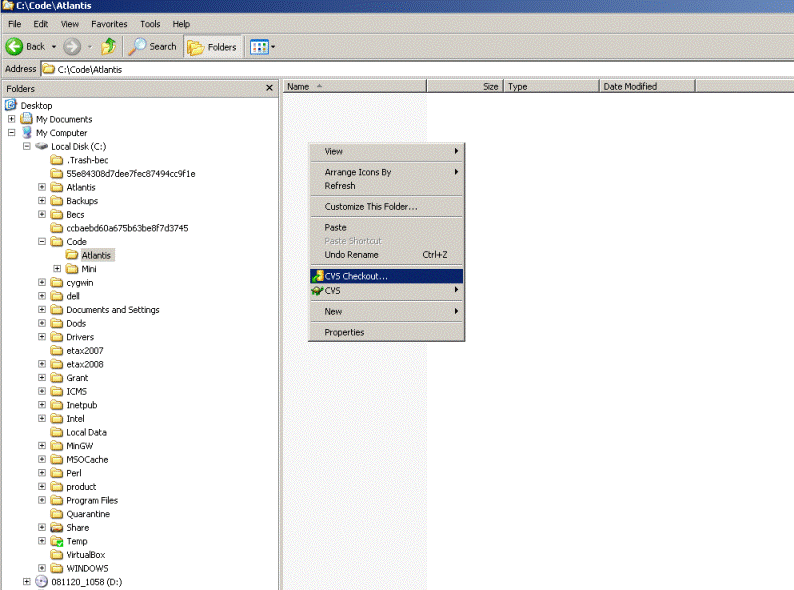
Go to your atlantis code folder and right click in the right hand window as shown below. Now that you have CVS installed some additional menu options will appear. Select the ‘CVS Checkout’ option.
Step 4
Paste the CVSROOT into the CVSROOT field in the window as shown below.
The CVSROOT will be “:pserver:bec@njal.hba.marine.csiro.au/home/cvs/Repository” with your username instead of ‘bec’
Type ‘atlantis’ into the module field on the right of the window.
Then click the ‘OK’ button.
A window will come up asking your for your password (if you are not using the guest account) and then the code will be checked out.