NetCDF 4 in Windows
The most recent version of the NetCDF library is netCDF4.
1. Download netCDF 4
Download and run the appropriate 32-bit executable from the page http://www.unidata.ucar.edu/software/netcdf/docs/winbin.html.
For all existing Visual Studio projects Atlantis is compiled as a 32 bit program hence the requirement for the 32-bit netcdf libraries. Versions of Visual Studio prior to 2012 can only generate 32 bit programs - we are working on creating a solution for VS 2012 that builds a 64 bit version.
Make sure you download the +DAP version as this will include all of the dependencies. This will probably be installed into the following location:
C:Files.2
This folder will look something like the following:
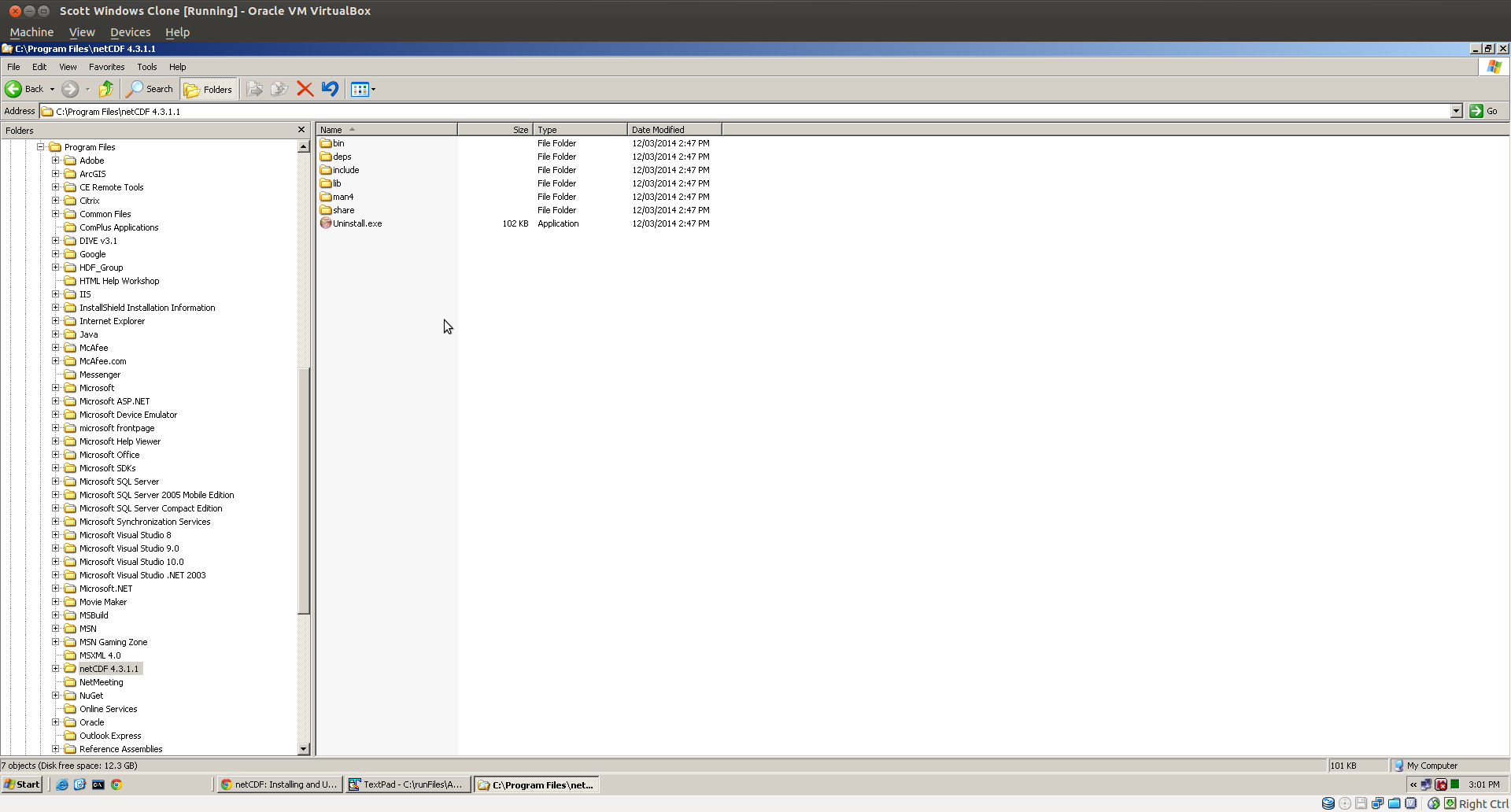
You will need to update your system path to include the paths of the bin and deps/shared/bin folders as shown below:
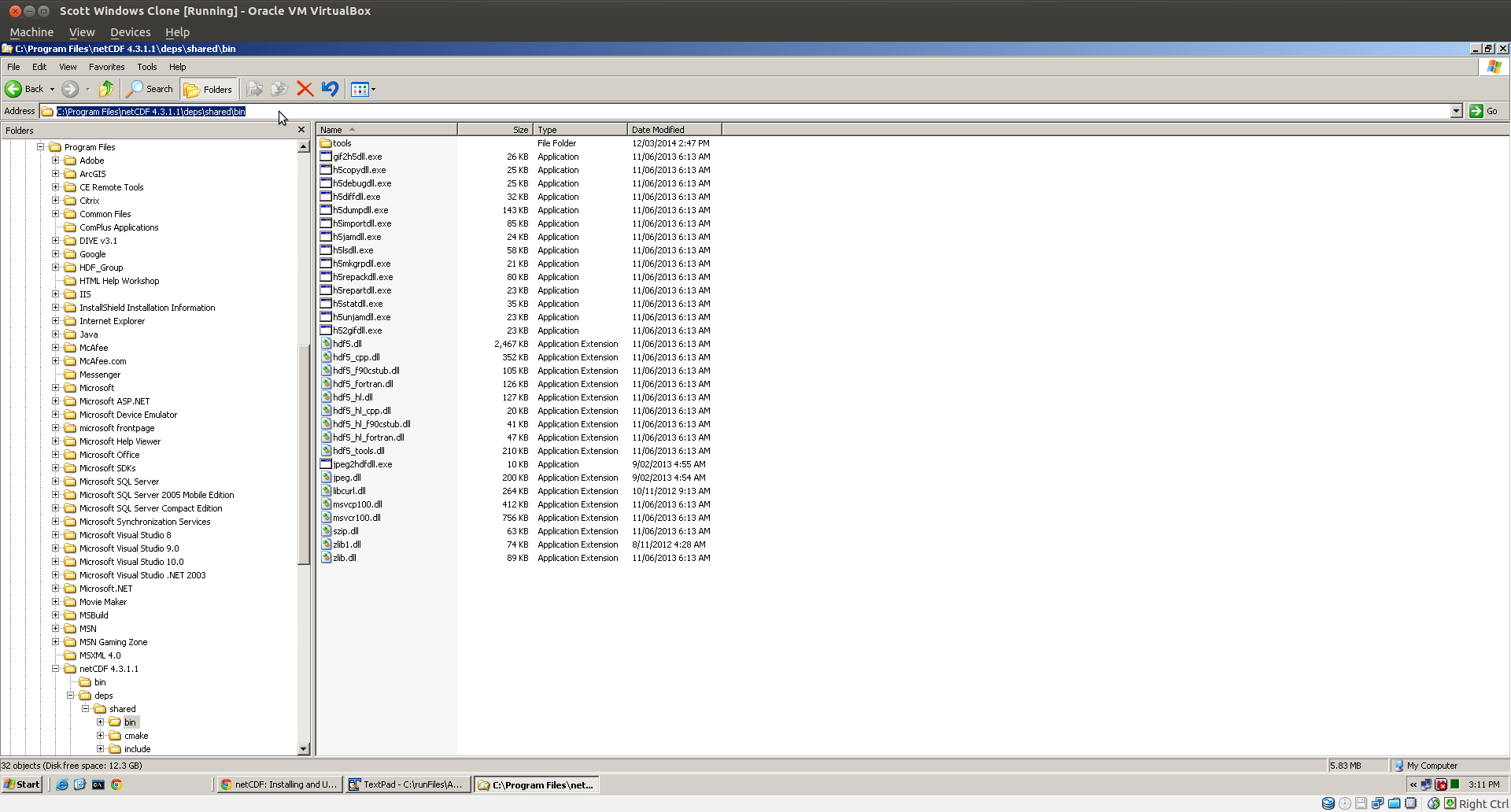
2. Update your Path to include the netCDF and dependancy DLLS.
Update your path as as per the following instructions, but you will need to add two folders to your path:
C:Files.2
C:Files.2
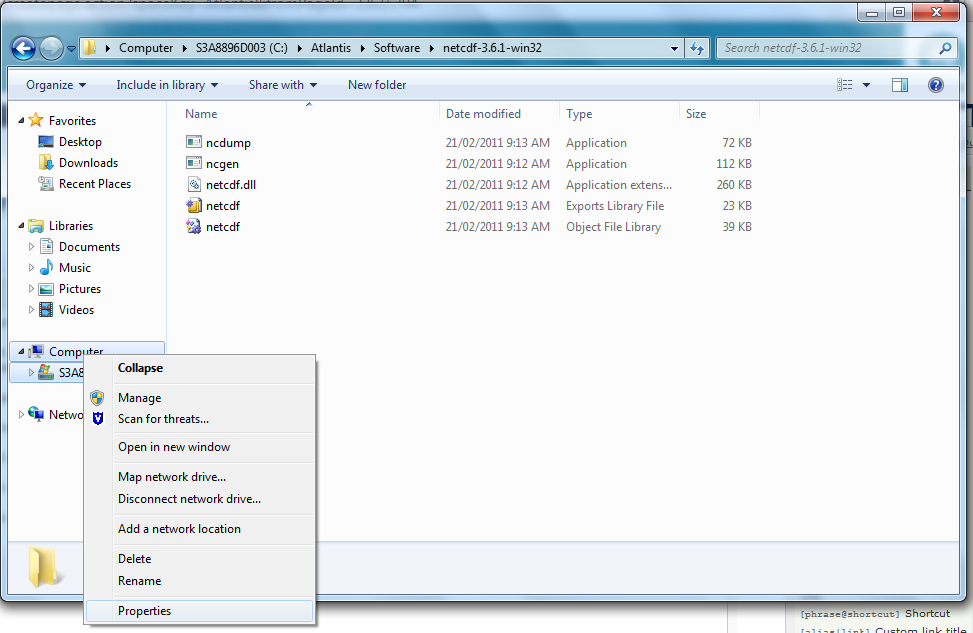
In Windows Explorer right click on the Computer folder and select ‘Properties’. In some of the older instances of Windows (e.g. XP) you need to go to Control Panel and chose System instead.
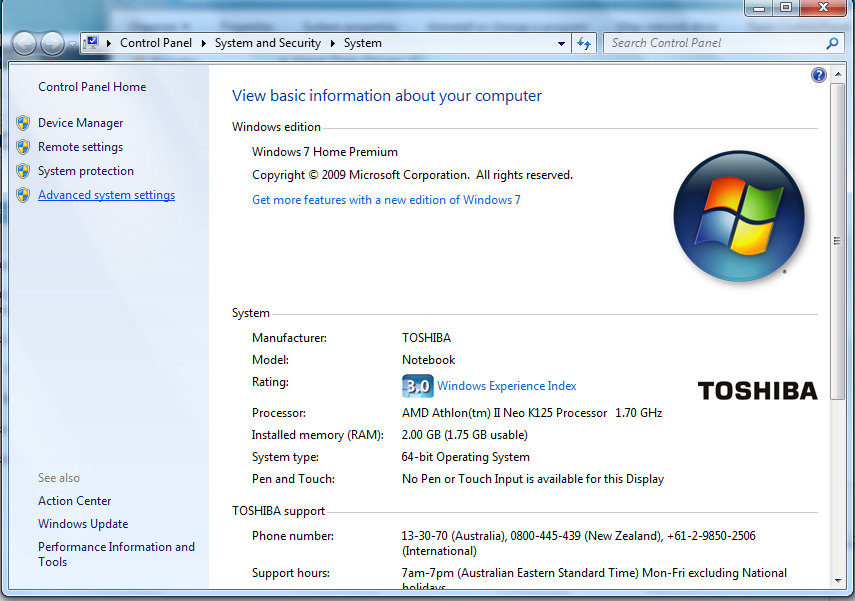
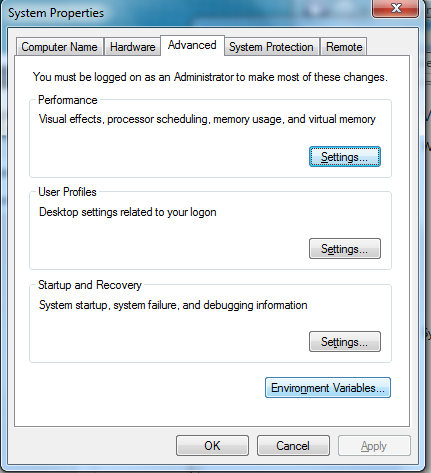
Depending on the version of Windows you are using the next view might change a bit but you want to click on ’Advanced System Settings. Or if in earlier versions of windows chose the advanced tab on the systems dialog box that you have accessed through the Control Panel.
Click on the ‘Advanced’ tab and click the ‘Environment Settings’.
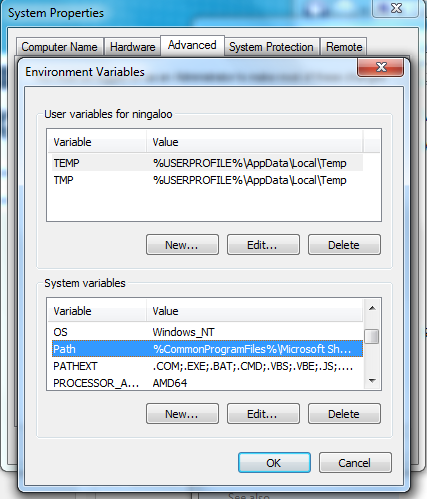
Select the ‘PATH’ variable in the ‘System Variables’ list and click the edit button.
WARNING: DO NOT DELETE YOUR EXISTING PATH VALUE. YOU ARE SIMPLY ADDING TO THE END. IF YOU DELETE YOUR EXISTING PATH SETTINGS YOU WILL BE IN A PICKLE.
Scroll to the end of the list and paste the path of the extract NetCDF tools:
C:Files.2
C:Files.2
We join these into a single ‘;’ separated value:
C:Files.2;C:Files.2
Make sure you put a ‘;’ after the last item in the list - the PATH variable is a list of folder locations separated by ‘;’.
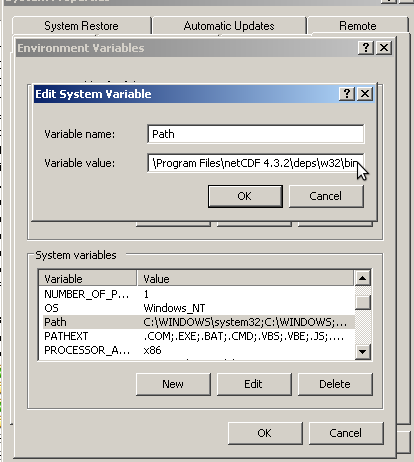
Then click the OK buttons until you get out of this screen.
3. Check your netCDF version
Open a new command prompt (environment settings, including PATH values, are only loaded when the command prompt opens, so if you have changed these you need to open a new prompt)
type the following:
ncgen -v
You should get the following:
C:>ncgen -v
Usage: ncgen [ -b ] [ -c ] [ -f ] [ -k kind ] [ -x ] [-S str …..
netcdf library version 4.3.2 of April 23 2014 15:17:09 $
Possible error messages:
This application has failed to start because hdf5.dll was not found. Re-installing this application may fix this problem.
This should be in the deps/w32/bin folder. Check you have added this to your path.