Open connection to Bowen Compute
If you have trouble connecting to a machine you may not yet have permission. Contact the Bec Gorton.
The easiest way to use the Bowen machines is to use the VNC (Virtual Connection Network) system to allow sharing of a graphical desktop. This is a two step process. First connect to the bowen machine using SSH (secure shell) and start a VNC session. This session can be used over a long period of time and you will only need to do this step when the machine is restarted or something goes wrong. Step 2 is to connect to the VNC session via VNC Viewer. Closing the connection you make via the VNC viewer will not close the session so any runs you start will continue to run. The vast majority of times you need to use the Bowen you will just be able to connect to your existing VNC session using Step 2 below.
Please only have one VNC session at any time, they use up process power. Once you are done using a machine for a period of time kill any VNC sessions you have running so you free up the machine for other users.
From a Window PC:
Step1. Start a VNC Session
You will need to use Putty to establish an SSH connection to the Bowen machine. Putty is a program that will already be installed on your Windows machine.
When you start putty the GUI will look like the following:
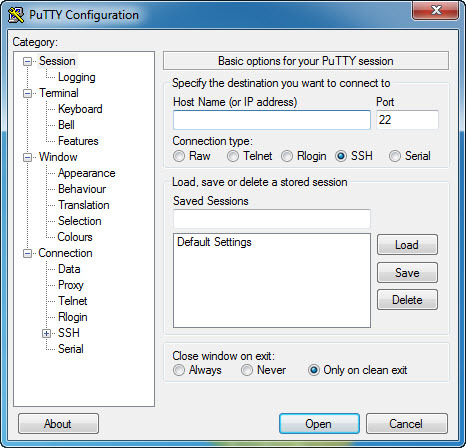
Enter the Bowen machine name you are going to be using (eg oa-22-mel.it.csiro.au) in the Host Name field. Do not change any other settings. Then click the ‘Open’ button.
You will then be asked for your CSIRO ident and password.
The first time you connect you may be prompted with a security warning. Tick Don’t ask me again for connections to this computer then click Yes
A linux terminal will open. This is like a windows command prompt.
Start a new VNC (Virtual Network Connection) session by typing the following:
vncserver -geometry 1800x1000
You will be asked for a password at this stage. This password will be used for all future VNC sessions on this machine. When you connect to the bowen server using vncviewer you will be asked for this password.
The -geometry arguments specify the screen size that will be used (width x height). You might need to work out your ideal size - if you are using a small laptop you might need to make these numbers smaller.
This will then tell you that it has created a VNC session and you will have been assigned a number (X) It will look something like the following:
gor171@oa-22-mel:~$ vncserver -geometry 1800x1000
New ‘oa-22-mel:1 (gor171)’ desktop is oa-22-mel:1
Starting applications specified in /OSM/HOME-MEL/gor171/.vnc/xstartup
Log file is /OSM/HOME-MEL/gor171/.vnc/oa-22-mel:1.log
The important bit is the number ‘1’. You will probably get a different number.
You are now ready to connect to the VNC session from your personal machine.
Step 2. Connect to VNC Session.
Start VNC viewer on your personal computer and use this number X, typing oa-22-mel.it.csiro.au:X and using the password you set in step 1.
Once that works, you have the window of the remote computer
From a Linux Machine:
Step1. Start a VNC Session
SSH into the machine:
ssh gor171@oa-22-mel.it.csiro.au
Obviously change the machine name to the Bowen Compute machine you are connecting to and use your ident.
Enter your CSIRO password.
Start a new VNC (Virtual Network Connection) session by typing the following:
vncserver -geometry 1800x1000
The -geometry arguments specify the screen size that will be used (width x height). You might need to work out your ideal size - if you are using a small laptop you might need to make these numbers smaller.
You will be asked for a password at this stage. This password will be used for all future VNC sessions on this machine. When you connect to the bowen server using vncviewer you will be asked for this password.
This will then tell you that it has created a VNC session and you will have been assigned a number. It will look something like the following:
gor171@oa-22-mel:~$ vncserver -geometry 1800x1000
New ‘oa-22-mel:1 (gor171)’ desktop is oa-22-mel:1
Starting applications specified in /OSM/HOME-MEL/gor171/.vnc/xstartup
Log file is /OSM/HOME-MEL/gor171/.vnc/oa-22-mel:1.log
The important bit is the number ‘1’. You will probably get a different number.
You are now ready to connect to the VNC session from your personal machine.
Step 2. Connect to VNC Session.
In a terminal on your personal machine connect to the VNC session using the following:
vncviewer oa-22-mel.it.csiro.au:1
where ‘1’ is the session number you got in the first step.
Killing a VNC session
Use the following command
vncserver -kill :X
where X is the VNC session number you want to kill.