NetCDF library -Old 3.6.1
Installing the NetCDF tools
If you are building Atlantis using Visual Studio you must have the NetCDF tools installed and the netcdf.dll must be in your PATH environment variable. This used to only apply to Visual Studio 2008 and more recent versions, but due to recent code changes it is now true for all windows instances.
If you run Atlantis and it generates an error saying that it cannot find netcdf.dll then follow these instructions to install.
1. Download the netcdf library.
Download the Windows DLL 3.6.1 zip from http://www.unidata.ucar.edu/software/netcdf/binaries.html.
Save this onto your computer.
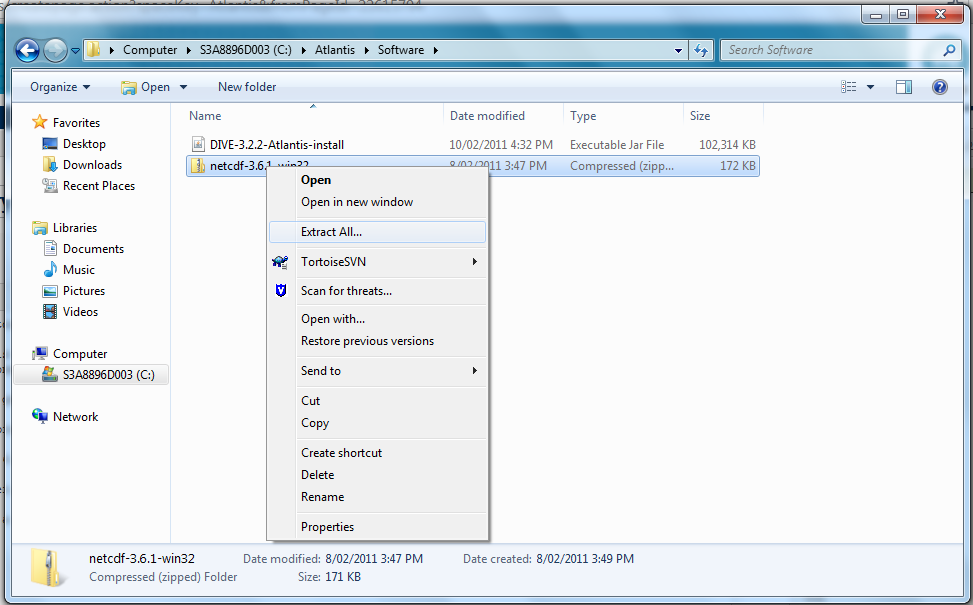
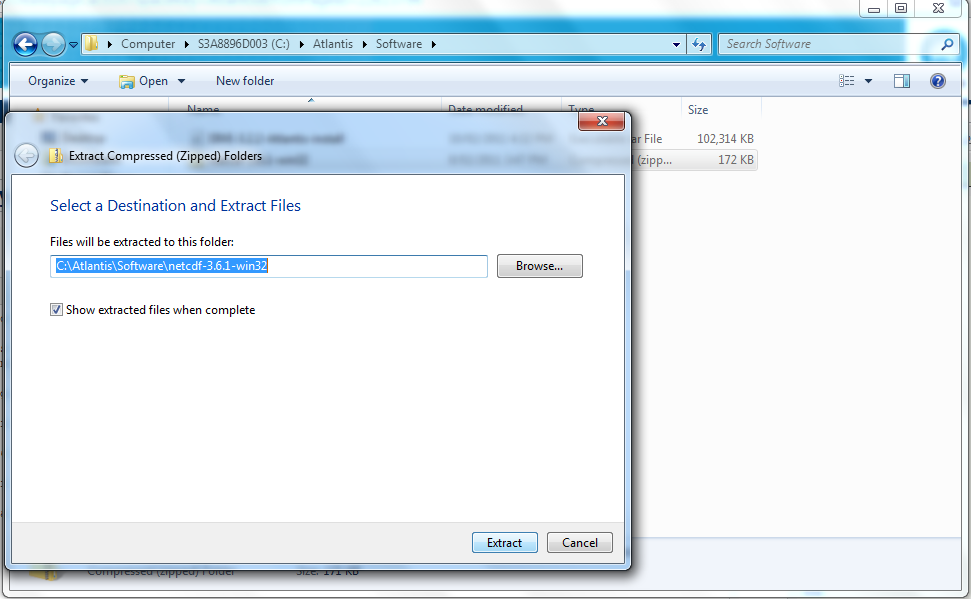
2. Extract the files
Extract the files into a location that does not include a space - so basically anywhere but ‘My Documents’.
3. Update the PATH environment variable
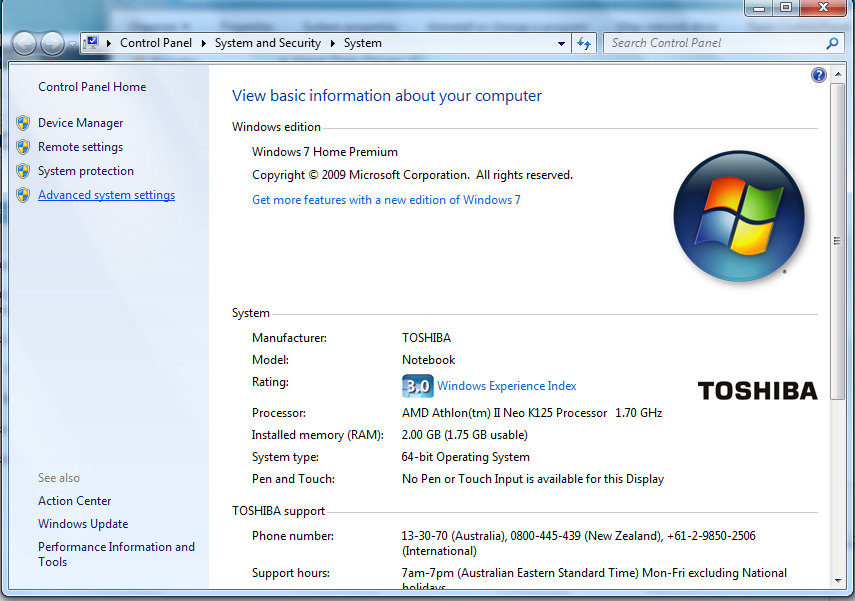
In Windows Explorer right click on the Computer folder and select ‘Properties’. In some of the older instances of Windows (e.g. XP) you need to go to Control Panel and chose System instead.
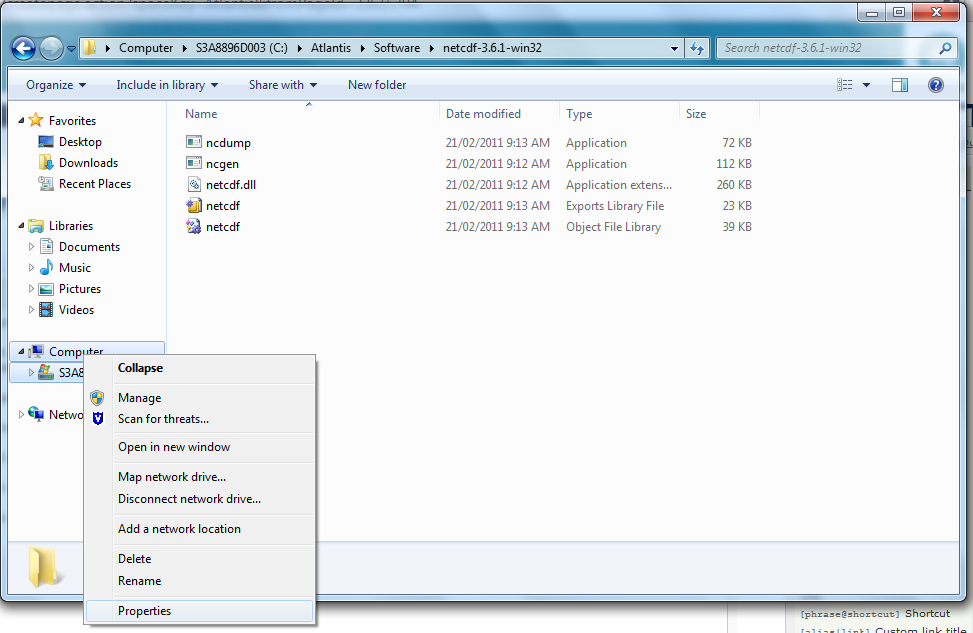
Depending on the version of Windows you are using the next view might change a bit but you want to click on ’Advanced System Settings. Or if in earlier versions of windows chose the advanced tab on the systems dialog box that you have accessed through the Control Panel.
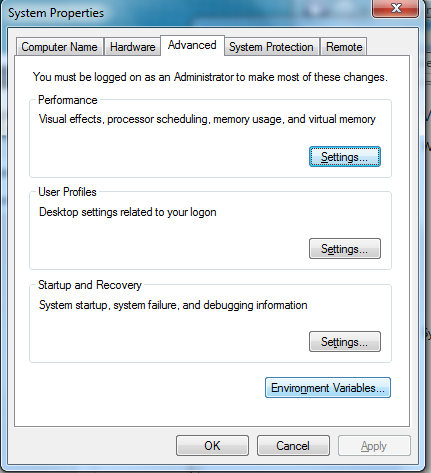
Click on the ‘Advanced’ tab and click the ‘Environment Settings’.
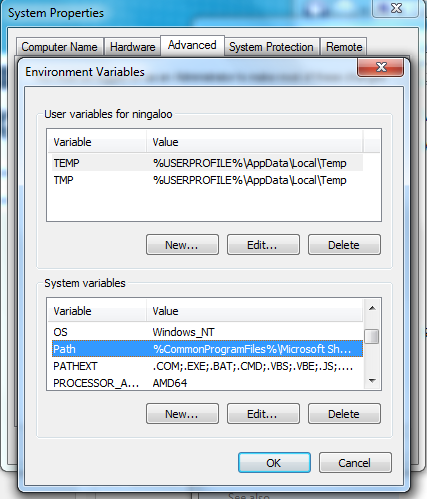
Select the ‘PATH’ variable in the ‘System Variables’ list and click the edit button.
WARNING: DO NOT DELETE YOUR EXISTING PATH VALUE. YOU ARE SIMPLY ADDING TO THE END. IF YOU DELETE YOUR EXISTING PATH SETTINGS YOU WILL BE IN A PICKLE.
Scroll to the end of the list and paste the path of the extract NetCDF tools. In this case we extracted the NetCDF tools to ‘C:.1-win32’. Make sure you put a ‘;’ after the last item in the list - the PATH variable is a list of folder locations separated by ‘;’.
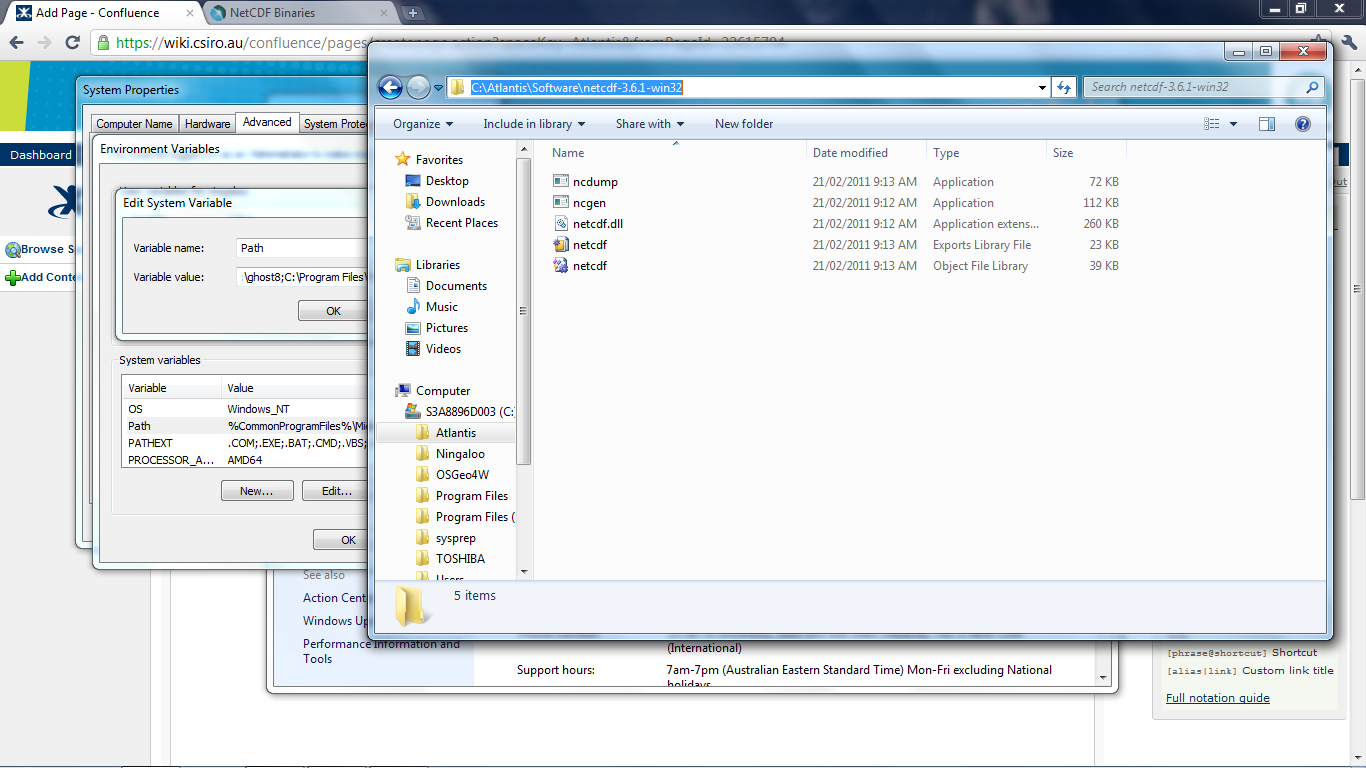
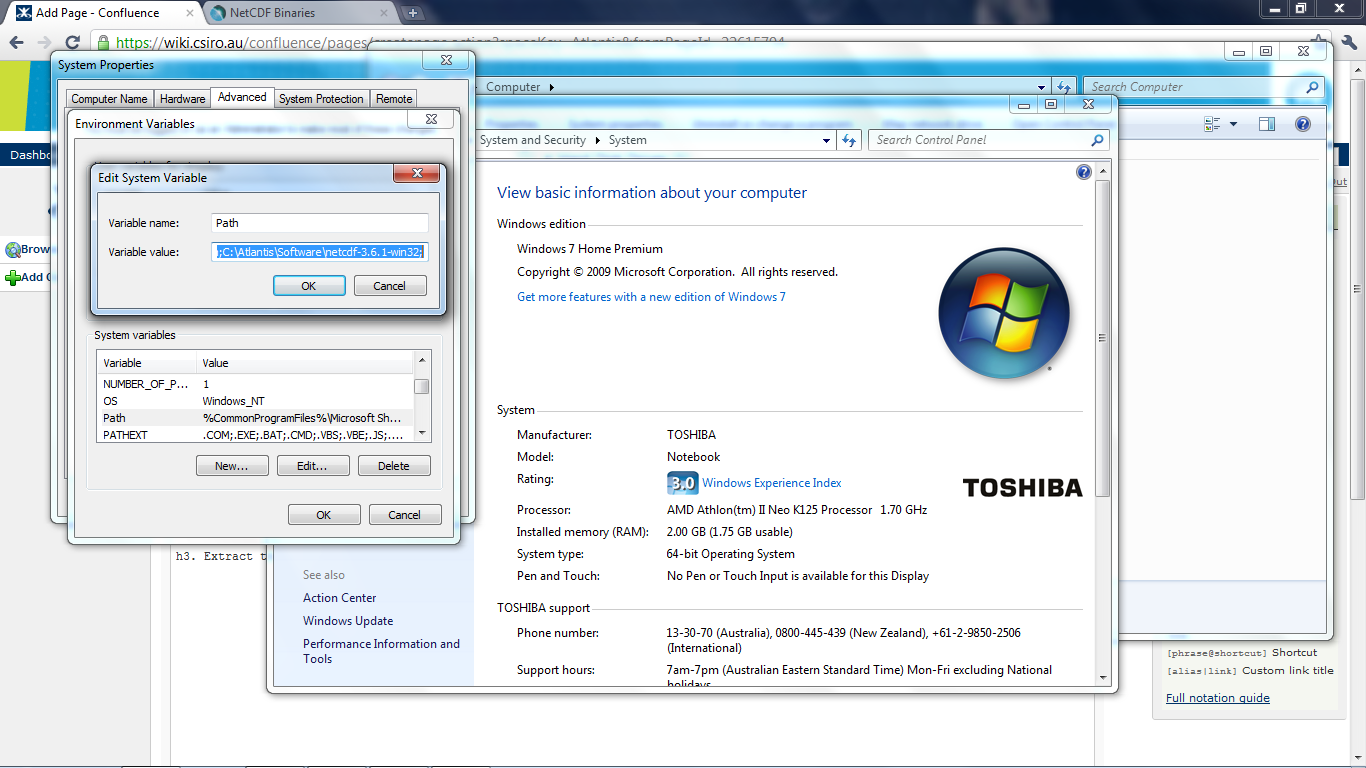
Then click the OK buttons until you get out of this screen.
4. Test the NetCDF tools.
Open a command prompt (Start -> All Programs -> Accessories -> Command Prompt)
Type the following:
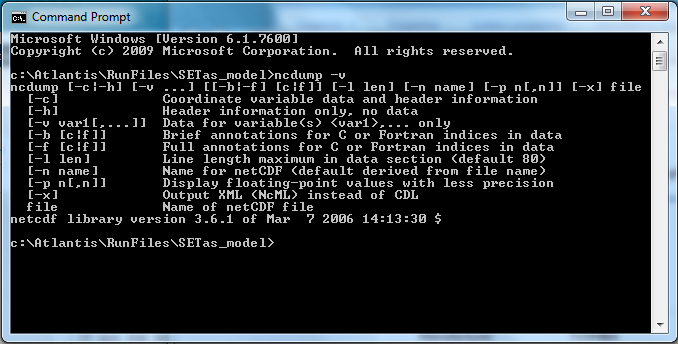
ncdump -v
And you should see the following. If not try to update your environment variable again, making sure you have the ‘;’ separating folders in the list. If it still doesn’t work contact your IT Support or contact Bec.